drive_backup_400.jpg

Tip of the Week: Google Offers Personal Users A Backup Solution

drive_backup_400.jpg

Let’s say that you are a consumer looking to take advantage of data backup in an affordable way. You want a way to keep your data safe in the event of a disaster. For the average PC user, Google Drive now allows users to take backups of specific files and folders via the Backup and Sync application on their desktop PC.

Keep in mind that we are only discussing the possibility of Google Drive as an adequate backup solution for the average PC user. For businesses that want to ensure minimal downtime and maximum data recovery, your best chance is to implement an enterprise-level backup and disaster recovery solution. If you want a powerful backup solution, be sure to reach out to us and ask about your options.

In essence, Backup and Sync is the latest version of Google Drive, and allows users to back up specific files or folders on their desktop PC, and send them to Google Drive. This is particularly great for consumers who want to keep backups of their photos, videos, and other media. Google understands that this feature is primarily meant for consumer use, and encourages their G-Suite customers to wait patiently until their Drive File Stream feature is available.

In terms of availability, Backup and Sync can be implemented by users using Google Drive for PC, as well as for Mac. Just keep in mind that using Backup and Sync to store your videos and photos will likely result in your exceeding the free Drive space offered by Google.

One thing to think about as a business owner though; you shouldn’t let employees store company data directly on their workstations. Files should be stored centrally on the server where you back it up. If your workstations have a lot of sensitive company data on them, a disgruntled employee could easily set up Google Drive Backup to grab and steal all of your data. It doesn’t hurt to be a little paranoid over your data and where it’s stored.

As always, you can count on NuTech Services to inform you about the latest and greatest business technology solutions for your organization’s needs. If you need help with managing data backup and recovery, you’ll find no one better suited to the task than us. To learn more about your business’s data backup options, reach out to us at 810.230.9455.

screen_mirroring_400.jpg

Tip of the Week: Tip of the Week: Mirror or Cast Your Android Device’s Screen

screen_mirroring_400.jpg

Sometimes, the small screen of your mobile device is just too small. Instead of buying a whole new device that’s bigger and better, you can remedy this by simply mirroring your phone’s screen to a larger screen. Here’s how to do it from your Android device to your Windows PC.

First off, a word about mirroring. We’re NOT talking about using your phone as a mirror to check your teeth for ‘passengers’ before an important meeting–though there are several apps that could help with that. Instead, mirroring is when what’s displayed on one screen is also displayed on a second screen in real-time. In the case of the goal we’re trying to achieve in this week’s tip, we’re showing you how to take what your Android device is displaying and mirroring it on the monitor of your Windows PC.

Now, your Android device does not come preloaded with this feature, which means you’ll have to pay the Google Play Store a visit.

There are actually a few different mirroring apps that you can download for free. One of the most popular apps is AirDroid. You can find it in the Play Store here.

Keep in mind that AirDroid requires root access and Wi-Fi in order to work properly, so it might not be possible for the average employee to do use. There are other apps that can be used, such as TeamViewer and various other screen sharing apps, but you’ll want to check with IT to ensure that one of them is a proper fit for your organization. Of course, you might already have a solution put into place in order to handle this function, so you might be pleasantly surprised.

An alternative to mirroring your device’s screen is to use a casting solution such as Google Chromecast. While this is primarily a consumer-based technology that can be used for streaming apps such as YouTube, Netflix, or other videos to a connected television, it also has business functions. For example, Chromecast supports a variety of business-related apps that can be cast from your mobile device or laptop to a television screen. You can view documents as a group or conduct meetings, depending on your business’s unique needs.

Mirroring your screen and casting applications can be a great way to help your business take its meetings to the next level. How is your organization conducting meetings? Could it use these technologies to change the way it functions for the better? If so, reach out to NuTech Services. Our trusted technicians will work with your organization to fulfill its goals. To learn more about business technology solutions, reach out to us at 810.230.9455.

google_chrome_issues_400.jpg

Tip of the Week: Make Chrome Run Faster With These 3 Adjustments

google_chrome_issues_400.jpg

If Google Chrome is your preferred web browser, then you might notice that, just like any other application, its performance may fluctuate. When you experience issues with Chrome, it’s important to keep in mind that you can take steps to remedy the problem.

Here are three ways that you can make Google Chrome work better.

Make Use of Chrome’s Task Manager
Much like your computer’s task manager, Chrome has a feature that allows you to view your computing resources and programs at a glance. With Chrome’s built-in task manager, you can see information on browser tabs and extensions, and how much processing power they are using up. This information can help you diagnose which tabs are slowing down your browser. To open it, click the three-dot menu in the top right corner of the browser and click More Tools. Next, select Task Manager. Or, if you want a more straightforward path, just use the shortcut Shift + Escape.

Once the window opens, you’ll see all of the tabs and extensions that are currently in use, along with statistics concerning just how much resources they are consuming. If you find the offending tab, you can select it and click End Process. If you use this method to end an extension or an open tab, it will stop functioning until you reload Chrome.

Take Advantage of Hardware Acceleration
Before digging too deep into this, we want to make sure that you’re aware that it’s not always recommended that you implement hardware acceleration for your browser, as it depends on how powerful your computer is. If you’re unfamiliar with hardware acceleration and want to know how it can improve your browsing experience, reach out to your IT department or contact NuTech Services.

Hardware acceleration works by moving some of the burden off of your PC’s CPU onto the GPU, which can potentially resolve some processing problems by placing the page-rendering burden on the CPU. For this setting, click on the three-dot menu and open Settings. Then go down to the bottom of the window and find Show Advanced Settings. Go down from here and find the System section. Select Use hardware acceleration when available and restart Chrome to activate it.

Reset Google Chrome
If you’re not sure if your efforts have actually led to a better performance from Google Chrome, you can try resetting the browser’s settings. To do so, go past hardware acceleration and you’ll see the option to Reset Settings. Confirm your choice. Keep in mind that Chrome might not reset things like bookmarks, browsing history, or saved passwords, but it will get rid of settings like your default start page, your new tab page, your pinned tabs, and your default search engine.

Does your business have problems making the most of its technology? For more great tips and tricks, reach out to us at 810.230.9455.

windows_apps_full_screen_400.jpg

Tip of the Week: How to Automatically Open a Windows App in Fullscreen

windows_apps_full_screen_400.jpg

If you’re a regular user of Windows applications, you’ll notice that they will, by default, open into smaller windows, allowing users to customize the size of their windows as need be. Usually, when you want to increase the size of the app, you have to click the maximize button in the top-right corner. However, you can save a little bit of time each time you do this by setting Windows to default to full-screen mode for this application.

First, you’ll want to pick the application, and find it’s shortcut on your desktop. When we say “shortcut,” we are referring to the little icons on your desktop that open a program, like Microsoft Word or your preferred Internet browser.

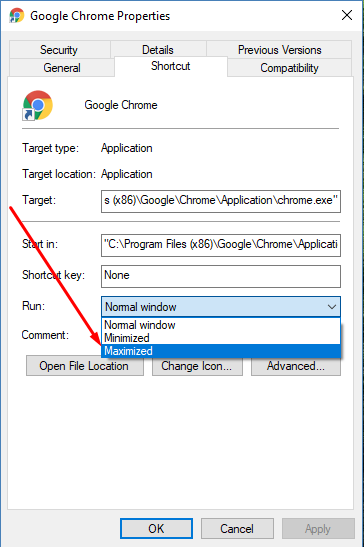
Select the app’s icon and right-click it. Go to the bottom of the dropdown menu and you’ll see Properties. Click it and you’ll open a Properties window, which will open up to the Shortcut tab.

You’re looking for the Run drop-down menu. It will be just a few selections down from the top of the tab. Currently, you’ll notice that it’s set to Normal window. However, if you click on the down arrow, you’ll be shown choices for Normal Window, Minimized, or Maximized. Click on Maximized, and whenever you open the program in the future, it will default to full screen mode. Once you’ve done this, click Apply to save the changes.

ib app full screen 1

While it might not seem like it saves a lot of time, it will certainly be more convenient. Just take a moment to optimize your settings now and you’ll save a lot of time and frustration in the future. To learn more about how to save time and optimize your business technology, subscribe to NuTech Services’s blog.

quietier_pc_400.jpg

Tip of the Week: Options for Quieting a Noisy Computer

quietier_pc_400.jpg

How much noise does your work desktop make? Chances are that the majority of it comes from the fans. These fans are designed to cool down the systems while also maintaining an acceptable noise level. However, the longer your technology lasts, you might realize that these fans seem a bit louder than usual due to your machine needing more work from them to keep the innards cool.

It’s also worth noting that your PC might be caked in dust from years of use. With the dust blockading the fans, they’ll have to work a bit harder than before to get enough airflow, which means that they will create more noise. It’s certainly worth checking out if your computer has suddenly grown louder than you’re used to.

Unlike other fans that you might have in the office, computer fans don’t have settings that you can easily adjust. Furthermore, it’s unwise to mess with your PC fan speed in general, since it’s designed to keep your PC components at an optimal temperature. It might be a better move to just replace the noisy fans and upgrade to better, more quiet fans. Since fans are one of the few mechanical parts in most modern computers, they are the components that will show significant wear and tear, even if you take proper care of your computer.

Disclaimer: If you’re looking to replace your computer’s fans or do any work requiring you to open the case and swap out parts, then it’s highly recommended that you either know what you’re doing or have the assistance of an IT professional.

If you’re seriously contemplating changing out your fans, keep the following in mind:

  • A bigger fan will move more air at lower speeds, which makes for a quieter experience. Just make sure that your computer’s tower can accommodate it.
  • Look for fans that change their speeds to the amount of heat created by the PC. This keeps the fan’s noise levels to a minimum, even when it’s not being used as much.,
  • More powerful, high-end desktops require a lot of airflow. By these, we mean PCs dedicated to intensive tasks, such as gaming or video editing. These often have to use multiple fans, so there’s no way around that. However, a technician can probably install some sound-muffling foam to keep the noise to a minimum.

While your PC’s fans could be a major source of noise, there could be other problems associated with a loud computer. If you want to get to the root of the problem, reach out to NuTech Services for professional technology consultation and maintenance. To learn more, call us at 810.230.9455.

ssd_better_than_hdd_400.jpg

Tip of the Week: Got a Solid State Drive? Here’s How to Take Care of It

ssd_better_than_hdd_400.jpg

You may have purchased a solid state drive because of its many benefits over the hard disk drive. Although, if you want to get the most bang for your buck with a SSD, you’ll want to follow these best practices.

Install the Latest Operating System
Operating systems are updated periodically, but they are implemented with the idea in mind that more devices will be using a solid state drive compared to the normal hard disk drive. By upgrading to the latest operating system, you’re guaranteeing that your OS will be able to support your SSD.

Avoid Manipulating Data or Activating Wasteful Settings
An SSD can only rewrite data so many times before it’s unable to do so. While this limit isn’t low, the standard SSD can handle 40 GB of data writing every day for up to 10 years. Therefore, it’s a bad move to use your SSD to copy files or download data, as this puts unnecessary strain on the device. This means that you want to avoid the following features that your technology might be equipped with:


  • Benchmarking: While SSDs are fast to write data, it’s important to avoid running speed tests to see exactly how fast yours is. This will only shorten the lifespan of your drive, as it will use up valuable cycles that would be better used elsewhere.
  • Hibernation: Your computer can save system memory to the hard drive before it’s powered off. While this can help, you get back in business and resume operations quickly in the near future, it takes up more cycles on your SSD than you might prefer. Contrary to popular belief, putting your device to sleep and hibernation are two very different things, as letting your device sleep is much safer and more efficient for SSDs than for HDDs.
  • Defragging: When you defrag your device, it actively looks at the data to organize it on the mechanical level. While defragging improves the performance of HDDs, the benefits provided to SSDs aren’t noticeable, but the wear and tear might be if you proceed to perform them unnecessarily.

Be Mindful of Your Saves
The nature of SSDs make them more suitable for data storage of particular varieties. For example, it’s not recommended that SSDs be used to save large files, or the temporary files created by background processes. In these cases, it’s better to rely on a hard disk drive for saving this kind of data.

On the plus side, SSDs have a much longer lifespan than your typical HDD thanks to the many differences in their composition, including the use of flash storage and the lack of fast-moving internal parts. By keeping these best practices in mind, you can take a great technology and make it last even longer, allowing your business to experience fewer replacement costs overall.

Does your business rely on SSD or HDD? If you’d like a chance to improve the way your organization functions, reach out to us at 810.230.9455.

dispose_of_computers_400.jpg

Tip of the Week: Cover Your Assets By Properly Disposing of Your Old Computers

dispose_of_computers_400.jpg

It can be difficult to think about replacing expensive hardware like desktops and servers without breaking your budget, much less having to deal with your old data. Thankfully, there are certain steps that you can take to make the transition to a new PC or server much easier, and it all starts with properly getting rid of your old technology.

Before we get started, though, we want to emphasize the importance of taking preventative measures. These keep you from getting into a situation where you don’t have the technology you need. In other words, if your desktop is outdated, then you shouldn’t wait until it completely breaks down before you replace it. This makes it imperative that you identify warning signs for your ailing technology before it suddenly stops working.

Warning Signs
To get started thinking about what to do when your computer breaks down, look for the following warning signs.

  • General PC slowdown
  • Freezing or even operating system crashes
  • Corrupted files or data loss
  • Random shutdowns
  • Startup errors

Keep in mind that these symptoms could be signs of other PC issues as well.

Understand When You Need to Replace Technology
Nothing your business utilizes can last forever, including technology like workstations and servers. If you suspect that your PC is reaching its limit, it’s crucial that you implement a strategy to properly replace it and dispose of the old one. If there’s no such policy to adhere to, you could be putting your business at risk of a data breach, and putting yourself at odds when the investigators look into whether it was your fault for failing to follow best practices. Gartner explains, “Best-practice PC disposal processes provide an audit trail documenting the serial-numbered inventory of disposed PCs, certification that proprietary and personal data has been removed and made unrecoverable, and transfer/reuse of software licenses, where applicable.”

Does your business have old technology that’s holding you back from moving forward? If so, contact NuTech Services right away. Our technicians can help your business completely wipe the data off of your old technology’s hard drives, or transfer it to your new, more recent hardware. Plus, we can recycle your business’s old devices so they won’t cause harm to the environment.

Our goal is to help your business make a smooth transition to new hardware solutions without putting your sensitive data at risk. To learn more about what we can do for your organization, reach out to us at 810.230.9455.

block_phone_numbers_on_mobile_400.jpg

Tip of the Week: Follow These Steps to Prevent Telemarketers From Calling You

block_phone_numbers_on_mobile_400.jpg

Here’s a common scenario: you’re relaxing at home with friends or family and all of a sudden, your cell phone starts ringing. You don’t recognize the number; in fact, your phone lists it as an out-of-state caller, so you don’t pick up. The call eventually ends and you’re back to relaxing. But then, your phone starts ringing again and it’s that same pesky solicitor trying to sell you on the virtues of auto loan refinancing or a free Caribbean vacation. Caller ID and voicemail have helped to curb the suffering over unwanted phone calls in the past, but what if you could just block a caller entirely?

Regardless of the phone you have, for this week’s tip, we can show you how to block telemarketers, scammers, and stalkers from ever contacting you again. Telemarketing is completely legal, so it won’t be going away anytime soon. Blocking callers is the quickest and easiest way to deal with this issue. If they call you once, you won’t ever have to deal with them again, after you’ve followed these steps:

Android Users
For Nougat and Marshmallow:

  • Go to the Phone app.
  • Navigate to All Calls.
  • Select Call from Undesired Contact.
  • Tap Block/Report Spam.
  • Then you will be asked if you would like to report the call as spam. Check the box, if you do wish to report it.

For Lollipop (Samsung Galaxy S4, S5, S6, Note 4 users):

  • Go to the Phone app and tap the Call Log.
  • Select the phone number you would like to block, then tap More.
  • Next, tap Add to Auto reject list and you’re all set!

iPhone Users
To block a number on your iPhone, first select the Phone app. Next:

  • Select Recents (at the bottom of the screen).
  • Find the number of the caller you wish to block and tap the i icon on the right-hand-side of the screen.
  • Here you will see the caller’s information, as well as different options for creating a new contact, etc. Scroll to the very bottom of this page and you’ll see the words, ‘Block This Caller.’
  • Once you’ve selected that, a message will pop up, asking you to confirm this decision. Tap Block Contact to make it official.

If you’re receiving unwanted text messages from a stranger, iOS 10 requires that you add this person or bot to your Contacts list first. To create a new contact from your Messages app, click on the phone number at the top of the screen and select Create New Contact. Then simply follow the steps listed above. If you haven’t upgraded to iOS 10 yet, look for the i icon in the upper-right corner of your text conversation and select it. Then tap Block This Caller > Block Contact.

There, now you’re ready to block like some of the best centers in NBA history. But also remember that, with great power comes great responsibility; while telemarketers won’t know if they’re on your block list, “friends” and family members you find annoying might eventually catch on. For more technology tips and tricks, reach out to NuTech Services at 810.230.9455.

netflix_downloads_400.jpg

Tip of the Week: Netflix Now Lets You Download Videos for Offline Viewing

netflix_downloads_400.jpg

The development of Netflix was revolutionary for its time, allowing users to stream a plethora of great television shows and movies on a whim. Nowadays, Netflix continues to innovate and create ways for users to take their services to places where they never thought possible. One example is taking Netflix on a flight, where the Wi-Fi is either completely unavailable, or too slow or expensive to be worth using. Netflix now allows users to download videos for offline viewing via its mobile app.

Keep in mind that this will only work if you have the official Netflix mobile app installed on your device. You can’t just download videos through the web browser on your smartphone or tablet. Also, keep in mind that not every video is immediately available for download, but the library is likely so large that you might not even notice. First, you’ll need to download the app.

If you want to filter the videos you see by availability to download, just tap or click the button in the top-left side of the screen. Next, select Available for Download. For the videos that are available for doing so, you’ll see the word Download.

If you just want to view the videos that you’ve downloaded in the Netflix app, click the menu and select My Downloads. Selecting this option will give you all of the details about the files, including how much space they take up on your device. This is important to know, especially since you’ll have limited storage space and you never know what you might run into while out of the office.

Deleting a video from your downloads is also quite simple. All you have to do is select the show and click the Downloaded button. This will present to you a window that lets you Delete Downloads. Once you’ve found it, you select the videos that you no longer want by checking the boxes in their corners. To finish the process, click on the trash can and delete your selected videos.

Where will you take advantage of Netflix’s download feature? Where else could you use this feature to save yourself from boredom? Let us know in the comments, and be sure to subcribe to our blog.

cracked_screen_400.jpg

Tip of the Week: What You Should Do After You’ve Cracked Your Phone’s Screen

cracked_screen_400.jpg

A cracked screen can happen to anyone at any time. All it takes is bumping into someone or your grip slipping off of your device, and boom–cracked screen. In cases, such as this, what’s the best way to move forward?

The first step is accepting that you may have made a mistake and dropped the phone, but this doesn’t help you fix it. Here are six ways that you can approach your cracked-screen scenario.

Just Leave it Be
If you really don’t want to get a new device or look into ways to fix your phone screen, well… just leave it as it is. This is certainly an option if the screen still works fine, but it might be a bit annoying to deal with. One thing you can do is patch up the screen with a screen protector so that it doesn’t fall apart, and hope for the best. However, if the crack is on the outside and you’re scratching your fingers on it, the next choice might be worth looking into.

Try to Find a Replacement
Since everyone and their brother owns a smartphone these days, and they are often replaced before the devices themselves are unusable, you’ll have an easier time finding a spare than ever before. It’s often the case that if you find a suitable device, all you have to do is move the SIM card from the old device to the new one. Just keep in mind that your replacement device needs to be on the same carrier (a Verizon phone, for example, can’t be used on a Sprint network). If you are the owner of a business that likes to provide phones to your workers, ensuring that you have insurance covering the phone can be the best way to mitigate the cost of one of your people inevitably cracking the screen on their company-issued smartphone.

Gamble on a DIY Repair
If a second-hand smartphone doesn’t sound like something you’d enjoy, perhaps you could attempt to repair the device yourself. While there are plenty of YouTube tutorials for do-it-yourselfers, you’ll be taking a risk that you might otherwise be better off without. Therefore, only attempt to fix it yourself if you’re aware of the consequences and committed to accepting the results, even if it doesn’t work out your way. You can probably find a replacement screen on the Internet from sources like eBay, but it might be more complex of a job than you’ve bargained for.

Have Someone Fix the Screen
If you’d rather not take any chances with your device’s maintenance, you can try to find someone who is willing to do the job for you. In most cases, this means finding a local company that you can hire for the repair job. Sometimes the service provider itself will handle this, but more likely they would have to send it out for repairs. You want to avoid going through the manufacturer (unless you’d rather foot a pricey repair bill), so it’s best to reach out to your internal IT department or a trusted IT provider.

Trade or Sell Your Phone
If you know that you’re just going to buy a new phone anyway, you might be able to get a little bit of value out of your old device before it’s gone forever. Try trading in your phone or selling it to someone who’s willing to pay a little bit of extra cash for it. Just make sure that you eliminate any data located on the device before handing it over. If you don’t know how to do this, just give us a call and we’ll be happy to assist you.

Look for a Better Price
If you’re just going to purchase a new device, you can find unlocked smartphones online–often at a better price than their designated commercial value. Even better is that these devices aren’t held back by contracts, so wireless carriers aren’t a problem either. However, it’s important that you find a device that actually works. Look for sellers who have a good reputation for providing quality used products. Remember, every time you purchase a used device, you’re dealing with at least some sort of risk.

With smartphones being extremely important for communications and remote productivity, every business should be cognizant of solid smartphone practices. If you are looking to manage the role smartphones have on your network security, or, if you’d like to expand the role smartphones have in your business, you should talk to one of NuTech Services’s IT professionals. We can present solutions like mobile device management, allowing your business to take advantage of a comprehensive bring your own device policy. We also have lines on innovative ways to affordably improve organizational smartphone deployments. Call us today at 810.230.9455.

cloud_computing_400.jpg

Tip of the Week: 3 Ways the Cloud Streamlines Operations for SMBs

cloud_computing_400.jpg

The cloud is a great asset that your business can use to your business’ operational efficiency, but only if you’ve put plenty of thought into the implementation process. Since the same cloud solution likely won’t work in the same way for two different organizations, you’ll need to intimately know what your business needs so that you can build and deliver a cloud solution to meet these demands. This week’s tip is all about helping you determine the best cloud solution for your organization.

Here are three factors that you need to consider when seeking out a cloud solution.

Hosting and Maintenance
It’s likely that hosting complicated technology solutions isn’t your organization’s forte. Not only is it a time-consuming endeavor, but it’s also technical and challenging. Plus, your organization may not have anyone dedicated to the task. In this case, it’s ideal to simply outsource this responsibility so that a cloud provider can host your solution and maintain it for you.

There are three types of cloud solutions that allow your organization to adapt to its specific needs: public, private, and hybrid. Public clouds allow your organization to store data in a shared online space that’s managed by the provider. Private clouds, on the other hand, can be hosted on-site on your own network, or virtually by an outside provider. Hybrid clouds are designed in a way which allows for the convenience of a public cloud while retaining the privacy and functionality of a private cloud.

Flexibility
Since your business will inevitably grow, you’ll be likely to add new users and implement new technologies. You’ll obtain more clients, and in doing so, your workload will increase to the point where your previous infrastructure might not be able to handle it properly. Therefore, if you want your cloud solution to be a valuable asset in the future, you’ll need to think about growth.

The cloud allows organizations of all shapes and sizes the flexibility to adapt to changes in their workforce or the number of devices accessing company data. You will have complete control over how many user accounts and how much data storage your organization has. The main difference, however, is that the public cloud makes it a bit less expensive to expand. If you choose a private cloud solution, it is sure to require a substantial investment on your part, as you will have to secure the resources. The main benefit of the private cloud is that you will have full control over the management and maintenance of the computing infrastructure, providing complete situational flexibility.

Security
When it comes to running a business, there are few things more important than security. Considering how cloud storage is based in the Internet, you have to worry more about hackers. There are security solutions designed to keep breaches from occurring, but not all cloud solutions offer the same level of protection.

What’s the major difference between these cloud solutions in regard to security? The public cloud generally allows for a set level of protection, with the potential for increased levels of service depending on how much you’re willing to pay. The good news is that the public cloud is relatively safe, the reason being that these cloud providers generally have trained IT teams that are dedicated to keeping your data safe. Of course, this is just to keep their own organization safe, but it’s nice to know that you can count on them. The same can be said for any managed service provider who offers a private cloud hosting service. If you host your own private cloud, you can implement whatever measures you desire.

Do you need a hand choosing a cloud solution for your business? If so, reach out to us at 810.230.9455.
internet_connectivity_speed_400.jpg

Tip of the Week: Resolve a Poor Internet Connection By Following These 3 Steps

internet_connectivity_speed_400.jpg

When the Internet goes down in the modern office, chaos ensues. The only way to subdue the panicked masses is to provide answers and to resolve the issue, ASAP. If you happen to find yourself in such an Internet-less predicament, then be sure to follow these three troubleshooting tips.

Is Everything Plugged In?
This may seem like a rather trivial thing to check, but sometimes the worst problems happen because the obvious is overlooked. When your Internet connection fails, be sure to check key components of your network like your modem and cables in order to make sure that everything is plugged in. Considering all of the activity that goes on in a work space, it’s important to keep in mind that accidents happen and equipment can get bumped and the wrong devices can get unplugged. Remember, looks can be deceiving and even a loose cable can be the culprit, so giving your cable connections a firm jiggle may prove an easy fix.

Turn Your Technology Off and on Again
It’s rather comical how many technology woes are remedied by simply turning a device off and on again, yet it’s a troubleshooting method that’s wholeheartedly recommended by IT technicians because it routinely does the trick! One piece of equipment you’ll want to restart first is the modem. If that doesn’t do it, then try restarting your wireless router or PC.

Now, before you go and compulsively restart everything, you’re first going to want to pause and apply some logic to the situation by asking some basic questions. For example, if the Internet is out on your workstation but it’s working on another office computer, then you know it’s an issue with your PC and not the network. If your smartphone lost Internet signal but the signal your PC that’s wired into the network is working fine, then you’ll know that you’ve got a problem with your wireless router and not the modem itself.

Call Your Internet Service Provider
If you go through the previous two steps and you’re still experiencing issues with your Internet connection, then the problem may lie with your Internet service provider. While it’s certainly a relief to learn that the problem isn’t your fault, it’s nevertheless annoying to still have to deal with lost productivity. If you do contact your ISP regarding the issue, they should be able to confirm if it’s an issue on their end, and they may even be able to help by giving you an estimate of when the issue will be resolved. This insight will allow you to better manage your downtime by helping you know what to do next, like sending your staff out to lunch early while the Internet is being fixed instead of having everybody sit around with hands in their pockets.

Bonus Tip: Have a Backup Plan
While we’re on the topic of lost productivity, it’s good to remind business owners about having a business continuity plan that includes backup solutions that allow employees to continue working while the Internet is down, like apps that aren’t totally dependent on the Internet and perhaps a way to connect mission-critical devices to a 4G wireless signal.

While it’s common for businesses to lose Internet connection every so often, it shouldn’t happen so frequently that it eats into your bottom line and causes serious problems. If this is the case, then you’ll want IT professionals to take a look at your network. NuTech Services can perform this task for you by discovering the issue and taking the necessary steps to get your network connections working at optimal levels. For assistance troubleshooting any of your company’s technologies, give us a call at 810.230.9455.

cybercrime_classificiations_400.jpg

Tip of the Week: 9 Hacker Profiles You Need to Be Aware Of

cybercrime_classificiations_400.jpg

“Hacker” is a word that can bring up many powerful impressions in people. It may very well bring up images of a pale super genius hunched over a keyboard, awash in dim blue light, as it does for many people. However, this extremely specific image does little but pigeonhole the many hackers in the real world into this dramatized caricature.


In reality, there are many different kinds of hacker, each with a preferred target and reason for doing what they do. For your part, it helps to be familiar with the 10 types of hackers that are to be found in reality.

Amateurs

  • Script Kiddies: There’s a reason that this type of hacker is under the “amateur” heading. These are the hackers who are capable of little more than piggybacking onto larger efforts, or dabbling in the more basic forms of cybercrime. They are little more than nuisances, compared to their hacking compatriots.

The Good Guys

  • White Hats: These ethical hackers, usually security researchers, are those that help the average user by using their skills to keep threats at bay.

Political Players

  • Hacktivists: Using DDoS attacks and website vandalism to humiliate and hobble their targets, these actors are usually part of a larger group, working towards an ideologically driven common cause.
  • Nationalist Hackers: These actors are those that, thanks to their sympathies and patriotic motives, are often given a pass by law enforcement.
  • Nation State Agents: These actors typically  for a government body, usually in a military or intelligence capacity. They have access to great capital resources, but will not hesitate to use common tools as well.

The Criminals

  • Cyber Mercenaries: These are hackers-for-hire, who will be brought on to assist other cybercriminals for a share of whatever ill-gotten gains there are to be had.
  • Repeat Offenders: These hackers are skilled, yet disorganized, which keeps them from obtaining the profits that other varieties of hackers do.
  • Organized Crime: These are criminal organizations that focus on cybercrime, with a hierarchy that allows them to reap great profits from their schemes.
  • Malicious Insider: These are the criminals who sit inside your walls, actively working to sabotage your efforts and leak critical information to your competition, often for personal motivations.

These malicious insiders are easily the most dangerous threat to an SMB, but that doesn’t mean that the others don’t cause problems as well. In order to keep them all at bay, you will not only need to encourage diligence in the workplace, but also protect that workplace with comprehensive security solutions.

The experts at NuTech Services are ready to assist you in securing your business assets against external influences. Call 810.230.9455 to get started.

net_security_tips_400.jpg

Tip of the Week: Ways to Be Active and Proactive With Your Network Security

net_security_tips_400.jpg

Security troubles have many causes, but the only way to protect your business from any of them is to implement a comprehensive enterprise-level security solution. There are two other ways that you can work to protect your business, implementing software patches, and avoiding social engineering attempts.

Applying Software Patches
It should be clear that software patches are designed to fix security problems and improve the functionality of the software, but some organizations simply don’t have time to implement them manually, or they simply don’t understand the purpose for them. Part of the problem is that sometimes the developers aren’t necessarily clear that patches are available, while other times those within your organization may not even know how to administer them. Regardless of the reason, there are usually problems on a network that will go unattended for extended periods of time.

Most hackers only want to take advantage of the issues they can detect. Thus, there could be countless threats out there designed to target countless unpatched vulnerabilities on your network that not even the hackers can know about. It makes sense for a hacker to use just one exploit to target a handful of vulnerabilities. Therefore, it’s important to make sure that all software that you use is updated and patched.

Additionally, your systems shouldn’t be running unused programs. The more software you have, the more ways hackers can take advantage of your organization’s network vulnerabilities. Moreover, you might even be wasting revenue on renewing software licenses that you don’t even need, so it’s best perform a network audit from time to time to get the worthless software off your infrastructure.

Dodging Social Engineering Attempts
Social engineering is broadly categorized as any method that takes advantage of unprepared users or those who are ignorant of solid network security practices. Examples include a phone call or email message claiming that the network has been breached by a foreign entity and that “tech support” needs to remote into the computer and resolve the issue. There are other, more subtle methods as well, such as targeted spear phishing attacks that go after specific users with personal information that convince them that the hacker is someone in authority.

These types of attacks vary in sophistication, but they can range anywhere from an employee receiving a message claiming that they’ve won a prize, to the intruder physically following your employees into the office and stealing sensitive data manually. In instances like these, a little bit of employee training can go a long way. Teach them to look for anything suspicious, and inform them that vigilance is incredibly important in the workplace.

These two security improvements barely scratch the surface of what your organization should be focusing on for network security. If you want to fully protect your business to the best of your ability, give us a call at 810.230.9455.

business_money_savings_400.jpg

Tip of the Week: Looking to Save Money? Try These 4 Proven Business Tactics

business_money_savings_400.jpg

Unless you have the good fortune to be running a large, well-funded business, you’ll always want to find ways to cut out unnecessary costs and improve the way your organization functions. When you’re cracking down on your budget, you might notice that even making a small change to your spending could yield quite a large return in the form of savings. We’ve compiled four ways that your business can start making more for less.

Be Mindful of Utilities
You might not notice the benefits right away, but we promise that smart monitoring can yield results. Since nobody is in the office at night, you can turn off lights and monitors that nobody will use. While it might be annoying to make the rounds at the end of the day to turn off unnecessary technology, it can save you quite a bit on your next electric bill. Turning down the heat or air conditioning when nobody is in the office accomplishes the same thing. You can use smart lights and thermostats to conserve energy consumption, and over time these investments will pay for themselves. If possible, arrange your office in a way which helps you get the most natural light from windows to cut down on electricity consumption.

Pay for Skills Rather Than Experience
When you create a job opening, do you include all sorts of qualifications, including a minimum amount of experience required? This is usually how it works since businesses typically look for only the best candidates, but the best candidates usually demand top dollar. If you want to save some money during the hiring process, look for workers who have the skills required to perform their tasks rather than industry experience. Experience is something that they will gain while working for you, so you benefit from bringing them onto your team at an entry level salary, using hard work as an incentive to achieve better pay and benefits.

Recycle Your Unneeded Equipment
Have you ever tried to trade in your old technology to vendors? Doing so can often get you a discount that can make it easier to afford new equipment. You might be surprised by how many companies offer these kinds of incentives, so be sure to ask about it next time you reach out to the organizations you procure your hardware from.

Try Outsourcing as Much as Possible
One of the best ways to make up for shortcomings in either the skills department or your budget is outsourcing. These days, if you can think it, you can outsource it. A particularly great way to save money is by outsourcing the maintenance and oversight of your IT infrastructure to NuTech Services. Our trusted IT professionals know how best to help you get the most out of its technology.

We’re confident that these four methods of saving money can help your business achieve more flexibility in your budget. What are some of the best ways your organization has saved on operational costs? Let us know in the comments.

ssid_name_400.jpg

Tip of the Week: You May Want to Remove Your Wi-Fi Information From the WiGLE Database

ssid_name_400.jpg

The next time you look at your device’s available Wi-Fi connections when in public, take a look at what some of the local connection names are. Chances are that you’ll see some names that match a nearby organization or family. Others might still be using the default SSID, like Linksys/Netgear-something-or-other. Others might get a little more creative. The latter example may have the right idea; using an obscure wireless network name is much more secure than naming your connection after what it’s associated with.

That’s not to say that those who have named their home Wi-Fi networks things like “FBI Surveillance Van 3” or “Pretty Fly for a Wi-Fi” are in the right, but you get the idea. Instead of misleading people with your SSID, you want to think of your wireless network’s name as a shield against possible hacking attacks. In fact, it’s recommended that you don’t broadcast it at all if you can help it, but this isn’t always an option–especially for organizations that offer Wi-Fi to the public as part of their consumer obligation.

One website in particular highlights the importance of naming your Wi-Fi network something inconspicuous. A service called WiGLE collects information from wireless networks and compiles it in an online database that’s searchable. WiGLE also offers software solutions that can map, query, and update these databases. Among the uses for WiGLE are: educating the public, research projects, site surveys, journalism, analyzing wireless usage, and finding usable networks while on the go.

Knowing that a tool like this exists, should make you stop and ask several questions. If your wireless network’s data is being collected, is it at risk? Is it something that you should be worried about? How do you remove your business’s wireless network from WiGLE? Well, WiGLE has posted answers to all of these questions:

“If your network is in WiGLE and you don’t like it, we’ll take it out immediately, but you should look into making your network harder to detect AND more secure; remember that you’re the one bombarding passers-by with your signal. We aren’t affiliated directly with any particular community or interest (other than our own), but we applaud the efforts of the people who wrote the stumbling software that feeds our project, the people looking to use wireless in innovative ways, and especially the community of people who just dig wireless network access and dig sharing it.”

To learn more, you can access the website here.

What are your thoughts on WiGLE? Let us know in the comments, and be sure to reach out to us for help securing your company’s wireless network.

Are you confident in the security of your wireless network? Don’t hesitate to call us at 810.230.9455 if you feel it’s time to audit one of your most targetable entry-points.

find_your_lost_phone_400.jpg

Tip of the Week: Activate These Solutions Now Before You Misplace Your Mobile Device Later

find_your_lost_phone_400.jpg

Can’t find your mobile device? If you’ve taken precautions and enabled solutions designed to track the whereabouts of your device, then you’ve got no reason to panic. Of course, hindsight is 20/20, so you’ll want to make sure you activate a phone-finding solution now (while you’ve got your device in your sights).


For an iPhone or Apple Device
If you’re an Apple enthusiast, you can use the Find My iPhone feature to locate any device connected to your Apple account. Log into your iCloud account or download the Find My iPhone app (before you lose your device, of course), which will help you keep track of your devices should you lose them. You can even track where your device is and where it has been. You can even lock the device and send it a message telling whoever finds it how to contact you! 

For an Android Device
Android makes finding your lost device as easy as performing a Google search. If you’re signed into your Google account, and you have your device linked to it, all you have to do is type into the search bar, “Find my Phone.” As long as there’s a device connected to your Google account, you’ll be shown a small map in the search results which shows you where the device is located. You can then proceed to ring the device and find it, if it is turned on and nearby.

For Other Devices
If you lose a more obscure device, you might have a little more trouble locating it. Thanks to a great app called Prey, you can find just about any laptop or smartphone that may be missing. You can install Prey for free on up to three devices, and as long as a thief hasn’t completely wiped your device, you’ll have a decent shot at discovering who has found it. Provided that your device has a Wi-Fi chip, a webcam, and the app installed, Prey can take a picture of whoever has found the device as well as where it is located.

Any devices that have Prey installed on them will automatically issue a report to you every so often, starting at 20 minutes. This can tell you exactly what’s happening with your device. This includes webcam snapshots, desktop captures, program installations, changed files, and so much more. Of course, if you think that maybe someone has just found your device and hasn’t stolen it, you have the option of letting them know how to contact you through various methods. Worst case scenario, you can lock it or remotely wipe it to secure any data located on it.

For more great tips and tricks on how to get the most out of your technology, subscribe to NuTech Services’s blog.

extensions_in_incognito_mode_400.jpg

Tip of the Week: Browse Incognito Mode Better By Enabling Your Extensions

extensions_in_incognito_mode_400.jpg

Fans of Google Chrome are familiar with using Incognito mode to cover their tracks and keep their Internet browsing private. Although, one downside of Incognito mode is that it disables your browser’s extensions by default. If this has been an annoyance for you, then you’ll be pleased to learn that switching on your extensions for Incognito Mode is easy to do.

Incognito mode might be a great way to browse the Internet with some semblance of privacy, but if it’s at the cost of your efficient browsing thanks to extensions, it’s somewhat unfortunate. Thankfully, there is a very simple way to make sure that your extensions work at all times, even when in Incognito mode.

Just follow these short directions and you’ll have extensions in your browser during Incognito mode:

  • Click Chrome’s menu button
  • Make your way to the More Tools
  • Click on Extensions
  • Go through the extensions and find the one that you want to enable in Incognito mode
  • Click on the Allow in Incognito Mode button

Well, there you have it. Now you can use your extensions even while in Incognito mode! Just keep in mind that there’s probably a very good reason why Google Chrome blocks extensions by default, so try to limit it to only extensions that you absolutely trust. The last thing you need is a security discrepancy caused by you trying to find a more convenient way to go about your daily business.

For more great tips and tricks to help you get the most out of your technology, subscribe to NuTech Services’s blog.

restart_windows_10_400.jpg

Tip of the Week: How to Prevent Windows 10 From Restarting While You’re Working

restart_windows_10_400.jpg

How many times has this happened to you: you’ve walked back to your home or work PC after taking a break, only to find that Windows 10 installed new updates and automatically restarted? Thanks to Windows 10’s notoriously aggressive update behavior, any work that wasn’t saved was lost forever. It can be very frustrating to lose a project that you’ve spent hours on, through no fault of your own. Luckily, there are steps you can take to easily create a restart schedule.

In the fall of 2016, Microsoft issued an Anniversary Update to the Windows 10 OS. With this update, Microsoft included a new feature called “Active Hours.” Active Hours was created to let users specify the times when they’re more likely to be using their computers. In order to set up an Active Hours restart schedule, ensure that your computer has the Anniversary update installed (check your PC settings to see if it has already present). If you need help installing Windows 10 Anniversary, you can download this Update Assistant on Microsoft’s website: https://www.microsoft.com/en-us/windows/features.

After Windows 10 Anniversary is properly installed, follow these steps to setup Active Hours on your PC:

    n

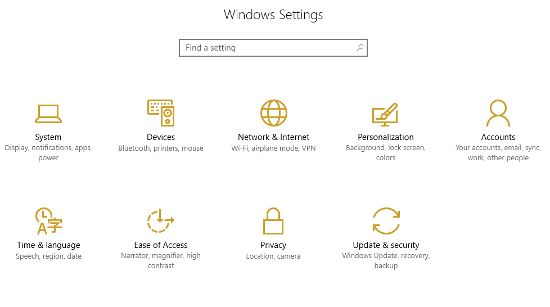
  1. Click on the Start menu and then the Settings. As a shortcut, you can also use Windows key + i on your keyboard.
  2. Next, select Update & Security.
    ib win 10 1
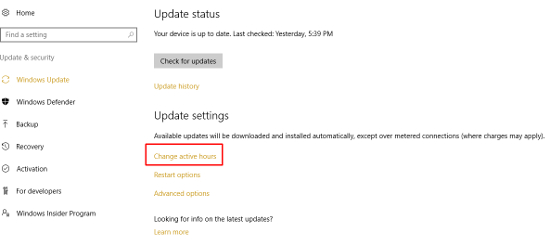
  3. Under the Windows Update tab, which will show up automatically, you’ll see a link to Change active hours. Click that.
    ib win 10 2
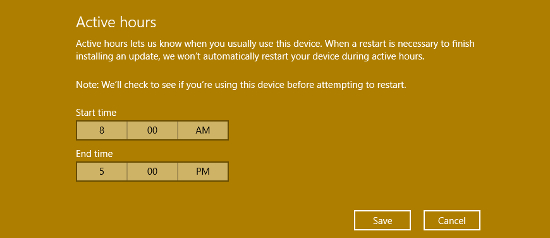
  4. From there, you can set your active hours (note: time lengths exceeding 12 hours will be marked as invalid).
    ib win 10 3
  5. Click Save to confirm your changes.

Now your PC will not install updates during those specified hours. But again, at most, you’re only covered for a 12-hour period. So, what about those times when you need to pull an all-nighter to complete a project? Not only can Windows 10 updates interrupt your productivity, they can also take a long time to install. To further prevent unwanted installations and restarts, you can also adjust your restart settings.

To change your restart settings, you’ll need to stay in the Update & Security section of your PC settings. Next:

    n

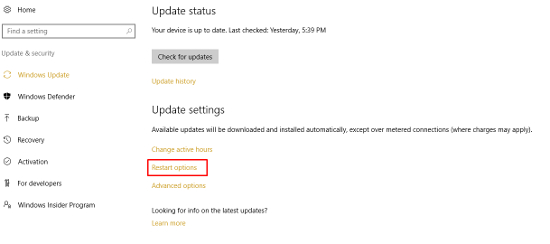
  1. Click on Restart options, which is located under Change active hours.
    ib win 10 4
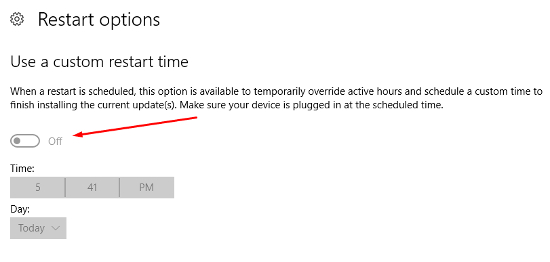
  2. Turn the feature On.
    ib win 10 5
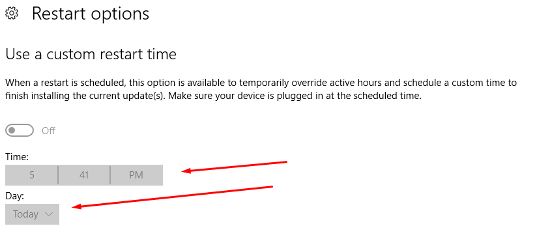
  3. Next, set the day and time when you’d like Windows to finish installing updates. There is no need to save anything. As long as the switch is set to On, you’re all set.
    ib win 10 6

If you find that the On/Off switch is grayed out and you aren’t able to adjust it, this means that there are no new updates available at that time. In other words, you won’t have to worry about updates finishing up and forcing your PC to restart. Be sure to keep an eye on your restart options if you are planning to burn the candle at both ends.

There you have it. Windows 10 will no longer be able to bully you into halting your productivity. For more tips on how to avoid downtime for your hardware, give NuTech Services a call at 810.230.9455.
protect_your_workers_identities_400.jpg

Tip of the Week: Worried About Identity Theft at Work? Follow These Tips for Peace of Mind

protect_your_workers_identities_400.jpg

The Bureau of Justice estimated that five percent of the entire U.S. population were victimized by identity thieves, a total of 11.7 million people. While the methods of collecting the data that identity thieves need to commit their crime vary from dumpster diving for carelessly discarded documents, to email phishing scams, there is a particular target that can easily supply them with the data they will need: the workplace.
While many businesses must collect a lot of personal data from their clients for billing purposes, their employees are also made vulnerable if some of that data was to be absconded with. After all, in order to properly pay an employee for their work, an employer will need a lot of their personally identifiable information on record. As a result, a workplace becomes a high-value target for someone seeking the data necessary to complete fraudulent actions in someone else’s name and becomes the responsibility of the entire business to safeguard that data, for the sake of their employees and their clients.

To that end, every employee should be educated in the best practices for protecting a company’s trove of sensitive information, and policies need to be implemented and enforced to ensure that these best practices are followed. To get you started with securing your office, make sure these four best practices are followed by everyone associated with your company.

Don’t Leave Workstations Unattended
Computers need to be locked and only accessible by its user’s password. Otherwise, anyone (be it a less-than-trustworthy employee or someone off the street stumbling across an opportunity) could access that workstation and any company documents available to that employee.

Go Paperless
Identity thieves love paper trails. Whether it be copies of sensitive files that make their way to the trash, or even documents that get left lying around the office, the fact of the matter is that having paper copies of sensitive information only increases the risk that this information will get stolen. Going paperless is a way to minimize this risk entirely.

Train Employees to Know What Email Scams Looks Like
Scams targeting email inboxes are some of the top ways that identities are compromised. Therefore, in addition to having a good spam blocking solution in place, you’re going to want to make sure that every worker knows what an email scam looks like so they won’t fall for one. You may know how to spot an obvious email scam, like an unsolicited email requesting sensitive information, but how sure are you that your staff knows what a scam looks like as well?

Implement Enterprise-Level Security Solutions
Without proactive solutions in place to protect your company’s sensitive data, it could easily fall into the wrong hands if a hacker breached your network. Every business needs to have security tools in place like antivirus, firewalls, spam-blocking, and content filtering. Thankfully, a solution like a Unified Threat Management tool offers businesses an easy way to get this kind of comprehensive protection in one easy-to-implement package!

Of course, there are many other steps to take to prevent your workplace from becoming an identity thief’s jackpot. NuTech Services can help advise you on the other steps your business needs to take in order to keep the identities it deals with properly protected. Call us today at 810.230.9455 for more information on the steps you need to take to prevent identity theft.