windowsinkofficiallogo400.jpg

Why Windows Ink Is So Useful In The Business Setting

windowsinkofficiallogo400.jpg

While computers, laptops, and tablets are incredible tools for productivity, there are many who miss the ability to scrawl out their ideas by hand. However, Microsoft has developed a means for your business to enjoy the benefits of both approaches with Windows Ink.

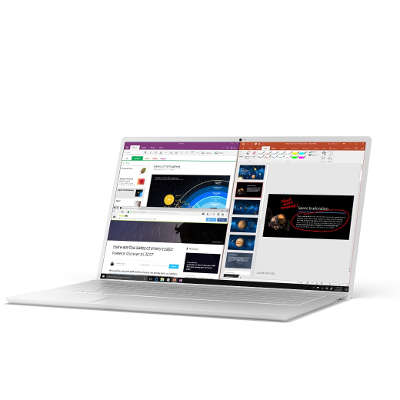
You may be familiar with the digital tablets that many artists use to transpose their ideas directly into their computer. The concept behind Windows Ink is very much the same. The primary difference is that, rather than using a separate tablet that you plug in via a USB connection, Windows Ink enables you to take notes right on the screen of your device with specialized writing utensils.

Naturally, as a Windows (and by extension, Microsoft) tool, Windows Ink is particularly suited to working with Microsoft Office products.

  • Microsoft Word: Windows Ink not only allows you to mark up documents, but allows you to edit them with different settings and gestures. Among other features, you can turn your stylus into a high-precision highlighter, or delete unwanted words or sections with a quick strikethrough.
  • Microsoft OneNote: With Windows Ink, OneNote turns into a freehand calculator. If you write an equation in the workspace, you can get the answer instantly–or, if you want to polish your math skills, OneNote will take you through the process step-by-step.
  • Microsoft PowerPoint: If you have ever used PowerPoint and wished that you could do more than what the toolbar allows you to do, Windows Ink is for you. Using the built-in ruler that comes with Windows Ink, you can draw with more precision than ever. Plus, Windows Ink gives you the ability to replay whatever notes others have made on a PowerPoint file.

Of course, there’s more that Windows Ink can do than work with the various programs of Microsoft Office. For instance, if you use Windows Ink to jot an address on a sticky note, Maps will step in to find you the best route. Another useful utility Windows Ink offers is its ability to take screenshots that you can then put notes on, allowing your reaction to be more easily understood.

The utility of Windows Ink in an office setting should be clear. Communications can be condensed from emails that list out the edits that a document needs, to contextual notes being made directly on the document itself. Windows Ink can essentially turn your device into an interactive notebook, allowing you improved utility and increased potential for productivity.

To learn more about Windows Ink and other useful solutions for your business, reach out to NuTech Services at 810.230.9455.
excel_tips_400.jpg

Tip of the Week: Making Your Excel Use Easier

excel_tips_400.jpg

When it comes to making a spreadsheet, Microsoft Excel is the go-to program for many users. However, many of these users spend much more time creating and formatting these spreadsheets than they have to. For today’s tip, we’ll outline some experience-improving shortcuts that can improve how you use Excel.

Auto Sum Shortcut
You can use Excel as a quick-adding calculator. This can be made even easier with a quick shortcut. Once you’ve highlighted all the cells you’re trying to total up, pressing Alt and = will give you the final result.

Multiple Cells with the Same Text
We’ve all been there–arduously pasting the same text into cell after cell. Fortunately, there’s a shortcut that will let you do the same thing. Again, after highlighting all the cells that need the same text, you simply type the desired input, but press Ctrl and Enter rather than just hitting the Enter button on its own.

Speedy Data Sorting
Sometimes, we need to order the data in a spreadsheet by a particular variable. The Microsoft Auto Filter is a handy way to do so. Once your data is in the spreadsheet, you can select the columns you want to Auto Filter by clicking the top rows. Once that’s attended to, click Data. You will then see the option for Filter and then Auto Filter. This adds drop-down option menus to the top rows of each column, allowing you to sort them based on that column’s data, alphabetizing or grouping the data by its value.

What are your favorite Excel shortcuts? Let us know in the comments, and be sure to come back to the NuTech Services blog for more handy tips and trick!

outlook_tips_400.jpg

Tip of the Week: Using Shortcuts Can Improve Your Microsoft Outlook Experience

outlook_tips_400.jpg

Microsoft Outlook is a great tool that can help your business stay in touch with clients and vendors, as well as stay updated regarding your internal operations. However, did you know that you probably aren’t using Outlook to the best of its abilities? We’ll walk you through some of the easiest ways to help you take even greater advantage of Microsoft Outlook for your organization: keyboard shortcuts.

Many of the shortcuts that work in Microsoft Word, like bolding or underlining text, remain unchanged through the Office 365 productivity suite, but the following are exclusive to Outlook. Here are some great shortcuts that you can use in Microsoft Outlook versions 2013 and 2016. In fact, you can print out this blog and place it on your desk so that you’ll never have to look up another Microsoft Outlook keyboard shortcut again!

  • Alt + S: This will send an email.
  • Ctrl + Enter: Send the message you’re currently writing.
  • Ctrl + R: Reply to an email.
  • Ctrl + F: Forward an email.
  • Ctrl + K: Complete the name or email you are typing into the address bar.
  • Ctrl + N: Create a new email folder.
  • Ctrl + Shift + A: Create a new appointment on your calendar.
  • Ctrl + Shift + O: Open your Outbox.
  • Ctrl + Shift + I: Open your Inbox.
  • Ctrl + Shift + C: Create a new contact.

As previously mentioned, many other shortcuts exist, and they all function in similar ways to the way they work in other Microsoft products.

By using all of these shortcuts to your best advantage, you can cut down on time wasted by fumbling through Outlook to click on several buttons that can be replaced by keyboard shortcuts. To learn more about how you can take full advantage of your business technology, be sure to subscribe to our blog.

one_note_benefits_400.jpg

Microsoft OneNote May Be the Best Note-Taking Tool on the Market

one_note_benefits_400.jpg

Most modern PCs come pre-installed with a handy tool by Microsoft called OneNote (and it’s also included with Office 365). Today, we’ll run through the features that OneNote offers that make it a useful business tool.

Keep in mind, we’ll be focusing on OneNote 2016. Older versions of OneNote have some of the same features, but if you are running an older version of Office, you may want to consider upgrading.

Benefits of OneNote
OneNote was clearly designed with collaboration in mind, as you can save your Notebooks either to your local network drive, or to Microsoft’s OneDrive. You are able to share your Notebooks with others in your organization and work together, letting you collaborate on projects and share notes in the cloud.

While OneNote on its own isn’t the best word processor, spreadsheet app, or presentation software, it offers what can be described as the highlight reel of the other Office 365 applications. You can write, build simple tables, show charts and graphs, and even draw, but it won’t replace your other Office 365 applications.

Note Taking Capabilities
OneNote offers an impressive number of features that make it an excellent choice for quick note creation and organization. As you create a Notebook, you can divide it into tabs, and then divide those tabs into pages. OneNote also has premade templates for you to utilize, or you can create your own, to best arrange the particular information that note is to contain.

Of course, your notes can include more than just text. OneNote allows you to take clippings from web pages and insert them into your note. Another great thing about OneNote is you to pull text directly from images by right-clicking them, or search for text that appears in included images, with a considerably high level of success.

Plus, with the right equipment, OneNote supports handwritten note-taking, and is able to convert it into font-based text with good accuracy. The same can be said of its math function. By typing out or drawing a simple equation, the formula can be both converted to text and solved, as long as it was properly formatted. 

You can format your pages to suit your needs, and OneNote also offers a very handy feature that allows you to link content on one page to content elsewhere in OneNote for quick access. Finally, for added security, notes can be password protected, so if they are shared with someone they shouldn’t be, your data is still safe.

OneNote offers plenty of highly usable features to improve your business’ organization and collaboration. So, tell us, will you try it out in your company? Would you try it out for personal use? What do you use to stay organized? Let us know in the comments!

windows_bugs_400.jpg

“The Worst” Windows Bug is Now Taken Care of, Thanks to Google

windows_bugs_400.jpg

When a security researcher tweeted about what they thought was “the worst Windows remote code exec” in his memory, a recent incident came to mind: one that allowed a targeted file to implement remote code execution processes in order to manipulate any infected system. This vulnerability let the infected machine spread the issue to others and could be set off if a certain file were to be scanned by the Microsoft Malware Protection Engine. Scary stuff!

Regarding the incident, Microsoft was quick to resolve the issue. Thankfully.

The researchers who uncovered this vulnerability were Tavis Ormandy and Natalie Silvanovich from the Google Project Zero team. Once the pair had discovered the vulnerability, they took to Twitter to announce it to the world, including to Microsoft and the Microsoft Security Response Center.

Upon the notification, the MSRC confirmed that the vulnerability was indeed present, and that there were quite a few pieces of software within the Microsoft Malware Protection Engine that allowed a “specially crafted file” to run code placed on the system. This vulnerability was so widespread that it could be found on just about any recent Windows machine, including those running Windows 7, 8.1, 10, and even Windows RT.

Though this particular problem has been resolved, its urgency serves to remind all business owners that their software solutions need to be up-to-date at all times. While problems are often resolved by programmers, hackers always try to outdo them, creating a vicious, neverending cycle. Unless you want your business to be caught in the crossfire, you should patch your software whenever new updates are released. If you try to function without them, you’ll be leaving your organization wide open to attacks–attacks that can easily be preventable with proactive maintenance.

Does your organization need this type of proactive maintenance and management? If you think that it’s a hassle to keep an eye out for updates, you’re right. You shouldn’t have to worry about this, especially not while keeping your operations afloat. NuTech Services can provide the IT you need by taking care of these updates for you so you can stay focused on running your business. To learn more, reach out to us at 810.230.9455.

windows_10s_interface_400.jpg

Microsoft “Slims” Down Windows 10 With New Operating System

windows_10s_interface_400.jpg

Have you ever tried using a Google Chromebook for work purposes? While it might offer the ability to browse the web on a budget, the device is limited by the operating system’s lack of functionality. Microsoft has created a similar operating system in the form of Windows 10 S, which uses less processing power than the full version of their latest operating system.

Windows 10 S runs on less resources than laptops running Windows 10 Pro, which gives it a better loading speed. In fact, a laptop that’s running Windows 10 S can load a user profile up to 15 seconds faster. This is mostly thanks to there being fewer processes and applications running in the background.

The first audience Microsoft is targeting with this new operating system is educational institutions, like schools and college campuses. Unfortunately, Windows 10 S likely won’t be a good fit for an organization outside of education. While it might be helpful if you’re on a budget, it faces the same limits and inconsistencies as the Chrome OS. You get a passable experience, but what you can do will be limited.

It stands to reason that Windows 10 S will be found mostly on inexpensive laptops. Businesses that want to keep costs down have an option if they don’t want or need the extra power. Big names such as Dell, HP, and Acer have all chosen to produce laptops with Windows 10 S pre-packaged on them. This might be a great way to acquire a low-cost device for traveling or for meetings.

Most notable about this new operating system is that Microsoft is using this opportunity to upsell users on their Windows 10 Pro OS. Windows 10 S will be free, primarily because it’s already installed on the devices that will be using it. However, users can easily upgrade to the full version of Windows 10 Pro. While students can receive the full version of Windows 10 Pro for free, non-students must pay $49. This effectively gives businesses the opportunity to “test-drive” Windows 10 before going all-in.

Starting as early as this summer, Windows 10 S will be available. However, you still need to consider the repercussions of trying to save money by going with a cheaper device and lightweight OS. If you consult a professional IT technician, you’ll be able to iron out all of the details and understand exactly what you want and need before making a commitment, like purchasing a new device.

To learn more about how NuTech Services can help your business with its technology needs, reach out to us at 810.230.9455.

windows_10_kindle_fail_400.jpg

Latest Windows 10 Update Has Kindle Users Feeling Blue… Screen of Death

windows_10_kindle_fail_400.jpg

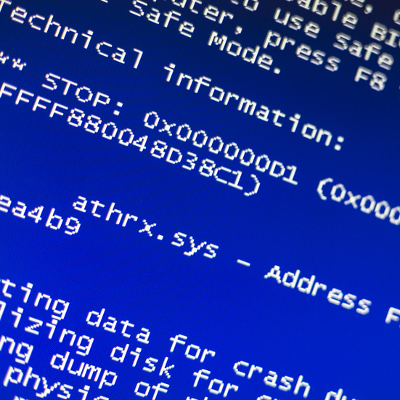
Have you have recently plugged in your Kindle and received a blue screen of death? Many Kindle users have found that Windows 10’s anniversary update is creating an issue in the way that Kindle transfers books and charges via a USB connection. Some users are reporting that connecting a Kindle to a Windows 10 device will cause the device to lock up and display Windows’ infamous blue error screen before rebooting.

Users who have experienced this issue have taken to the Microsoft support forums hoping to find a way to resolve this issue. Unfortunately, what happens seems to vary by the user–some claim that the problem is rooted in the anniversary update, while others seem to think that it’s due to the pre-release software testing service Microsoft Insider.

The fallout of the issue also seems to vary. Some reports claim that the device can be restored to normal functionality after the reboot, but the problem comes up again with the next reboot. Some users have found that leaving their devices asleep as they plug in their Kindle can prevent the error from happening. Yet, even this doesn’t prevent the crashing, as many users report that the issue happens regardless of what they do.

All of these issues are in response to what users did to troubleshoot their own individual problems, yet nothing that they did could resolve them, despite elements like the USB cable being used as variables.

Worse yet, this isn’t the first problem that Microsoft has had to deal with since they released Windows 10’s anniversary update. While the update brought an enhanced usability and interesting new features, it also brought a bug that has led to some Windows 10 users being unable to use their webcams.

So far, neither of these issues have been resolved, though Microsoft claims that the webcam fixes will be available in September. In regards to the Kindle issue, there have been no hints as to how long these issues will persist. Kindle users may have to avoid causing the blue screen error in the first place, and tolerate the problems until the official fix is issued.

For the latest tech news and tricks, subscribe to our blog.

alert_windows_and_edge_updates_400.jpg

Alert: Microsoft’s Latest Patches Address 27 Vulnerabilities

alert_windows_and_edge_updates_400.jpg

Microsoft recently issued security patches to fix 27 vulnerabilities, many of which are critical in nature. The vulnerabilities are significant and popular titles are affected like Windows, Microsoft Office, Internet Explorer, and the new Edge browser. Microsoft users that ignore these security patches are putting their system at unnecessary risk.

If you’ve already applied the security patches, then rest assured, your computers are safe and what follows is an informative read of what you’re protected from. On the other hand, if you haven’t yet applied the security patches, then we’ll go over why you’ve got good reason to worry.

In relation to the critical vulnerabilities affecting Microsoft Office, Internet Explorer, and Edge, hackers have found a way to remotely execute malicious code through Office documents or web pages. Microsoft goes into detail about this in the following security bulletins:

Microsoft has also found and fixed vulnerabilities with the Windows Graphics Component, which affects Windows, Microsoft Office, Skype, and Lync. Hackers can exploit this vulnerability to remotely execute code through malicious documents and web pages.

Perhaps affecting the most users is a vulnerability discovered in Windows PDF Library, which comes bundled with Windows 8.1, Windows RT 8.1, Windows 10, Windows Server 2012, and Windows Server 2012 R2. This vulnerability involves a critical remote code execution flaw. The Edge browser is uniquely affected by this vulnerability, giving hackers an opening to exploit a malicious PDF document hosted on a website, which they’ll use to trick users into downloading.

Not all vulnerabilities fixed by Microsoft are categorized as “critical.” The security patches also take care of vulnerabilities deemed “important.” Still, the lessened severity of the threat doesn’t mean users can afford to ignore the patches.

Have you already applied Microsoft’s security patches? It’s important that you do and NuTech Services is standing by to assist if you require our services. To make this happen, simply call us at 810.230.9455.

We should also mention that NuTech Services clients who are taking advantage of our managed IT service have no need to worry about applying the security patches; our techs have already remotely performed this task for you. This is the case with all security patches and major software updates, meaning that you can rest easy knowing that your system is protected.

microsoft_technology_as_a_service_400.jpg

Microsoft Moves to Get a Piece of the Technology as a Service Market Share

microsoft_technology_as_a_service_400.jpg

Microsoft has been looking to cover more ground in the business environment by offering a new Technology as a Service (TaaS) offering, which will allow small businesses to purchase Surface products, accessories, and support for their devices, all with a monthly payment plan. Also, when it comes time to upgrade, customers can easily make the switch, as per their lease agreement.

Microsoft’s TaaS agreement allows businesses to pay for their devices over 12, 24, or 36 months. As expected, prices will vary depending on the length of the payment plan, and the devices purchased. One of the most affordable offerings is a basic-model Surface 3 paid for over 30 months, while a more expensive payment plan would be for a Surface Book over 18 months.

A membership in this program has several perks, including support when you need it, either by phone or in-store, one-on-one personal training, and in-store discounts on hardware and software solutions.

Of course, with all great things, there’s always a catch. First off, this is a business-exclusive offering. In the General Terms section of the TaaS Program Benefits Summary, it’s stated that the service is for “Business Customers Only; No purchase for resale.” In other words, this service is for end-users only, and that it has the right to cancel orders if it suspects resale activity. It also must be mentioned that this service is limited to official Microsoft products only.

While this service might seem tempting, we want to remind you that you don’t necessarily have to turn to Microsoft, or other hardware or software giants, for this type of service. NuTech Services wants to help your business find the right devices for your specific needs. We want your business to have the technology it deserves, without the headaches and frustrations of lease terms, purchase options, and cancellation fees.

Working with NuTech Services provides a fruitful relationship with a local business, rather than leasing your equipment through a third-party juggernaut like Microsoft – the software company is using LiftForward, a marketplace loan platform, to finance its Surface Membership service. We’ll handle all of the details for you, so that you can stay focused on what matters most – running your business.

Ultimately, NuTech Services can offer your business both the latest and greatest in computing solutions, and a professional relationship that allows your business to get the most out of its technology. To learn more about what we can offer your business, reach out to us at 810.230.9455.

microsoft_end_of_life_400.jpg

A Checklist of 40 Microsoft Software Titles Reaching End of Life/Extended Support in July 2016

microsoft_end_of_life_400.jpg

What kind of Microsoft products does your business use on a regular basis? If you can’t answer this question, you could be in trouble when it comes time to update your crucial applications and operating systems. This is a necessary part of working with technology; if your software can’t be considered secure, you need to upgrade to a more recent, better-functioning tool, or find yourself in a dangerous situation.

Microsoft in particular has a very specific way of handling support for their products. The software giant will provide what’s called “mainstream support,” which involves accepting requests for new features and hotfixes for key issues. Once mainstream support ends, the product enters an “extended support” period, where all warranties end, and the only support your product receives is security updates and patches.

Both of these periods last for five years, meaning that the lifespan of a piece of software is effectively ten years. Once extended support ends, the product reaches its “end of life,” in which Microsoft no longer supports the software at all.

Below, you’ll find a list of all Microsoft products that will reach their end of support date on July 12th, 2016. If your organization is currently using any of this software, you should seriously consider upgrading before it becomes a security discrepancy.

Service Packs Reaching End of Support

  • Microsoft Dynamics CRM 2013
  • Microsoft Dynamics SL 2011 Service Pack 2
  • Microsoft SQL Server 2014 Business Intelligence
  • Microsoft SQL Server 2014 Developer
  • Microsoft SQL Server 2014 Enterprise
  • Microsoft SQL Server 2014 Enterprise Core
  • Microsoft SQL Server 2014 Express
  • Microsoft SQL Server 2014 Standard
  • Microsoft SQL Server 2014 Web
  • Microsoft System Center 2012 Configuration Manager Service Pack 1
  • Microsoft System Center 2012 Endpoint Protection Service Pack 1
  • Microsoft System Center 2012 R2 Configuration Manager
  • Microsoft System Center 2012 R2 Endpoint Protection
  • Microsoft System Center 2012 R2 Endpoint Protection for Linux
  • Microsoft System Center 2012 R2 Endpoint Protection for Mac

Products Moving from Mainstream to Extended Support
Products marked with * expire on July 10th, 2016, rather than July 12th, 2016.

  • * Microsoft Dynamics Retail Management System Headquarters 2.0
  • * Microsoft Dynamics Retail Management System Store Operations 2.0
  • Microsoft Project Server 2010 July 12, 2016
  • Microsoft Dynamics SL 2011
  • Microsoft SQL Server Compact 4.0
  • Windows MultiPoint Server 2011 Premium
  • Windows MultiPoint Server 2011 Standard

Products Moving to End of Support

  • Microsoft ActiveSync 4.2
  • Microsoft BizTalk Server 2006 Developer Edition
  • Microsoft BizTalk Server 2006 Enterprise Edition
  • Microsoft BizTalk Server 2006 R2 Branch Edition
  • Microsoft BizTalk Server 2006 R2 Developer Edition
  • Microsoft BizTalk Server 2006 R2 Enterprise Edition
  • Microsoft BizTalk Server 2006 R2 Standard Edition
  • Microsoft BizTalk Server 2006 Standard Edition
  • Microsoft Commerce Server 2007 Developer Edition
  • Microsoft Commerce Server 2007 Enterprise Edition
  • Microsoft Commerce Server 2007 Standard Edition
  • Microsoft Connected Services Framework Billing Standard Business Event 3.0
  • Microsoft Connected Services Framework Order Handling Standard Business Event 3.0
  • Microsoft Connected Services Framework Server 3.0
  • Microsoft Connected Services Framework Standard Server 3.0
  • Microsoft Connected Services Framework Standard Server with Standard Business Events 3.0
  • Microsoft Visual J# Version 2.0 Redistributable Package
  • Microsoft Visual Studio 2005 Team Foundation Server

Is your organization is facing an end-of-life event for any of these technologies? If so, contact NuTech Services. We’ll work with you to determine the best course of action for replacing your dying software. To learn more, reach out to us at 810.230.9455.

update_to_windows_10_400.jpg

What You Need to Know About Upgrading to Windows 10

update_to_windows_10_400.jpg

It’s been over two years since Microsoft stopped providing Windows XP with security updates and patches. The Windows operating system was known as one of the most popular Windows operating systems ever. Both businesses and consumers were affected by this major update, being forced to migrate to more recent operating systems in order to stay secure. Thankfully, an upgrade to Windows 10 isn’t nearly as difficult as one from XP to Windows 7, largely because of the hardware costs involved.

Budgeting Issues
The first major lesson that can be learned from Windows XP’s end of life is that many businesses felt a financial strain when considering the upgrade from such an old operating system. With Windows 10, this isn’t an issue… yet. Organizations that are currently using Windows 7 or 8.1 as their preferred operating system can still enjoy the free upgrade to Windows 10. This means that they don’t necessarily have to be worried about applying huge strains to their budget. Plus, businesses that ran Windows XP likely had to upgrade their hardware, as well, which was another major expense that caused organizations to dread upgrading and put it off for as long as possible.

In comparison, those who used Windows XP likely upgraded to Windows 7 or 8.1 leading up to and following XP’s end of support date. This means that organizations have a free upgrade to Windows 10 that can be cashed in until July 29th, 2016. Now is as good a time as any to invest in Windows 10, especially considering you already did the hard work of getting away from Windows XP.

Legacy Applications
Moving applications and internal software solutions can be a huge pain, regardless of which operating system you’re moving from, or what you’re moving to. Particularly with XP, organizations needed to perform extensive research into how to make their internal solutions work on more recent operating systems. Thanks to Windows XP’s end of life event, this research has already been done for many organizations.

In theory, a Windows 7 and 8.1 upgrade to Windows 10 will be much easier to pull off than an XP-to-Windows 7 upgrade. Of course, we’re not going to make any promises; each business is different, and will require varying degrees of compatibility with legacy software and applications. It’s important that you perform this research before you make any significant changes to your computing infrastructure, as even the slightest hiccup can cause downtime and hamper the migration process.

With over 300 million devices actively using Windows 10, it’s time to ask yourself when you’ll be implementing Windows 10 on your workstations and mobile devices. It’s important that you do so before the deadline for your free Windows 10 upgrade arrives. The latest technology could be a great benefit for your organization, and you’ll want to take advantage of the free upgrade before it’s gone forever.

To learn more about migration, contact NuTech Services at 810.230.9455.

b2ap3_thumbnail_windows_95_for_kids_400.jpg

How Today’s Teens React to Windows 95 [VIDEO]

b2ap3_thumbnail_windows_95_for_kids_400.jpgDo you remember the good old days of Windows 95? The nostalgia factor might be one reason to bring this up again, but the fact remains that Windows has changed significantly over the past twenty years; so much so that teenagers who were born just twenty years ago, after the introduction of Windows 95, may have no clue what they’re looking at.

You can watch the video here:

Watching these teens react to Windows 95 is borderline painful. Some make comments that it looks “prehistoric,” “dull,” and “ancient,” while others remark on how it looks somewhat like the operating systems that they are familiar with today. While many teens are in total shock over what they see, you can tell that some of the older ones are more appreciative of what they’re looking at, despite agreeing that it’s a very primitive OS for today’s tech-centric world.

Here are some observations from this video:

  • “How do you turn this thing on?” Many of the teens were confused about how to power-on the PC and power it down. The large power button on the old CRT monitor drew a lot of attention, but the teens spent quite some time looking for the power button on the main component itself.
  • Windows has grown more refined and personal: Several of the teens who responded in the video mention that it’s a little rough around the edges, but that it still seems somewhat familiar to them due to Microsoft keeping largely the same interface. Today’s Windows operating system holds many of the features that were present in Windows 95, including the Start menu and several icons, like Internet Explorer (now Edge), and the Recycle Bin, but its graphics interface and usability is much better.
  • “Oh no, there’s no WiFi!” These teens open up Internet Explorer (some of them saying that it’s somehow even worse than it is today), but are shocked that the PC doesn’t have WiFi. It just goes to show that they’ve been spoiled by two decades of technological innovations. People now believe that the worst thing that can happen to them is not having WiFi.
  • Technology has grown much easier to use: When given an explanation of how DOS systems work, the teens are in shock over how complicated and impossible it sounds to use the technology. One girl even makes a solid statement, “If users of consumer technology, like iPhones or iPads, had to enter in commands to open apps, nobody would use them.” We’ve grown accustomed to simple, easy-to-use technology, to the point where it becomes a chore to use anything less than the most recent operating system.

Either way, it’s incredible to think about just how far technology has come in just a few decades. Where will technology be decades from now? Do you have any fond memories of Windows 95? Let us know in the comments.

b2ap3_thumbnail_ie_8_9_10_goes_bye_bye_400.jpg

Microsoft Ends Support For Internet Explorer 8, 9, and 10, What’s This Mean For Your Business?

b2ap3_thumbnail_ie_8_9_10_goes_bye_bye_400.jpgBad news for users still running outdated versions of Internet Explorer – Microsoft has ended support for its legacy web browser. What this means is that Internet Explorer 8, 9, and 10, will no longer be issued critical patches and security updates, making its continued use a security risk.

As of January 12th, 2016, Internet Explorer 8, 9, and 10, will no longer be supported by Microsoft. This effectively forces users to either upgrade to the most recent version of everyone’s favorite web browser, IE 11, or switch to a competing web browser. Coincidentally, Microsoft also cut the cord on its Windows 8 operating system on January 12th, which seems like little more than a ploy to get users to upgrade to Windows 10. Thankfully, doing so will give Internet Explorer users access to IE 11, but it will also allow users the option of using Microsoft’s new web browser, Edge.

Keep in mind that “end of support” for Microsoft products only means that they will no longer be issuing patches and security updates to these products. They won’t disappear from your PC just because they’ve reached their end-of-support date. Basically, continuing to use software that’s no longer supported is a security risk, and should be avoided at all costs.

It might seem painful to give up on Internet Explorer, but rather than focus on how IE fell from grace, it’s less depressing to think about how great of a run it had in its prime. The fact remains that IE has fallen out of favor with users. As reported by CNet:

IE’s worldwide browser market share on desktops dropped from 58.2 percent at the start of 2014 to 48.6 percent in December, according to tracking company NetMarketShare. During the same period, Google-owned Chrome’s share rose from 16.4 percent to 32.3 percent.

This end-of-support date is a valuable reminder of just how important it is to be using the latest software and operating systems with your workstations and servers. If you’re using unsupported software, there’s a solid chance that your organization’s sensitive data could be at risk of a data breach or compromisation. Hackers and other online threats will gladly abuse any advantage you give them, including weak points normally addressed through patches and security updates. This is why it’s so important to keep your business’s infrastructure up to date.

One important fact to keep in mind about Internet Explorer is that there are rare cases of mission-critical software relying on certain parts of outdated versions of the web browser. Some businesses run into problems being unable to upgrade a workstation because they can’t afford to not be able to use this software. If you’ve had problems with this in the past, there’s a chance that it can happen again. You should always consult a trusted technician before upgrading haphazardly to a more recent operating system or web browser.

Many businesses find it extraordinarily difficult to keep their technology up to date, primarily because they’re already stretched too thin as it is. They simply don’t have the time or technical expertise required to perform quality maintenance. SMBs benefit the most from outsourcing IT services, primarily due to the immense savings of time and capital that can be invested in improving the business. NuTech Services can provide quality IT services, like our remote maintenance and management service, that’s designed to save you money while making IT management exceedingly easier.

For more information about how NuTech Services can make upgrading and maintaining your technology easier, give us a call at 810.230.9455.

b2ap3_thumbnail_sharepoint_information_400.jpg

SharePoint Brings Dynamic Collaboration to Your Business

b2ap3_thumbnail_sharepoint_information_400.jpgEvery business needs a platform they can use to securely store, organize, share, and access the mission-critical information needed to keep operations running smoothly. SharePoint is Microsoft’s intranet solution for enterprises of all shapes and sizes, and it’s worth looking into for your data needs.
SharePoint is part of the Microsoft Office 365 family, which means that it works seamlessly with all of Microsoft’s productivity applications. Yet, SharePoint isn’t a Microsoft-exclusive product. For example, it easily integrates with popular enterprise software from third parties. The integration of a valuable tool like Yammer, a corporate-style social network, is a great example of this.

Additionally, SharePoint can be accessed by non-Microsoft web browsers like Chrome and Firefox (and of course, it works great with IE and Edge). In fact, this is probably SharePoint’s strongest selling point; the fact that it can be accessed from the web browser of virtually any Internet-connected device. This is possible thanks to SharePoint’s ability to be hosted on the cloud, or on-premises (in your own IT infrastructure).

Another advantage of SharePoint comes from its versatility. As explained by the Microsoft support page, here are four ways that SharePoint can benefit your business.

  • SharePoint Online. A cloud-based service, hosted by Microsoft, for small and large businesses. Instead of installing and deploying SharePoint Server on-premises, organizations can subscribe to an Office 365 plan, or to just the SharePoint Online service. Using SharePoint Online, your employees can create intranet sites for the purpose of sharing documents and files with colleagues and customers.
  • SharePoint Foundation. SharePoint Foundation is available for on-premises deployment. You can use SharePoint Foundation to create a variety of sites that let your team collaborate on documents, lists, calendars, and other mission-critical data.
  • SharePoint Server. Organizations have the option to deploy and manage SharePoint Server on-premises. SharePoint Server also offers additional features and capabilities like Enterprise Content Management, business intelligence, enterprise search, personal sites, and a news feed.
  • OneDrive for Business folder sync. A desktop program that allows you to sync offline versions of your files to a folder on your computer.

The primary benefit of SharePoint is that it allows everyone on your team to share corporate data with each other. SharePoint is essentially the ultimate team collaboration tool for enterprises. Here are just some of the ways it can benefit your operations:

  • Share documents and files with employees and partners.
  • Host internal training guides.
  • Manage and organize projects.
  • Keep commonly updated documents in order.
  • Build and maintain repeatable processes.
  • Use it as a single, central location for everything going on internally.

Do you think that SharePoint is the intranet solution that your company needs? Whatever data-sharing platform you go with will affect operations in a major way. Therefore, you’re going to want to make sure that you consult an IT expert before making such an important decision regarding your company’s mission-critical technology. Give NuTech Services a call at 810.230.9455 to have a discussion about your data-hosting options, and to find out if a solution like SharePoint is right for you!

b2ap3_thumbnail_will_you_upgrade_to_windows_10_400.jpg

Tip of the Week: 4 Windows 10 Features that Let You Do More

b2ap3_thumbnail_will_you_upgrade_to_windows_10_400.jpgWith Windows 10’s arrival comes all sorts of great new features, many of which are unprecedented. Here are four new features that you should check out on your Windows 10 device.

Microsoft OneDrive Integration
Microsoft’s cloud storage solution, OneDrive, is a major focus with Windows 10, especially with the cloud growing more important for modern companies. With Windows 10, OneDrive is far more integrated than it was in the past, all to handle your data-sharing needs. Now, rather than being forced to use OneDrive with a Microsoft device, you can access your files with Android and iOS devices. In fact, you can even use OneDrive to access any of the files on your Windows 10 PC remotely, adding even more value to the service.

Battery-Saving Features
One of the cool new features of Windows 10 on a mobile device or laptop is that you don’t have to closely monitor your battery levels like you used to. Windows 10’s new battery saver feature automatically detects when your power level reaches a certain point, and it powers down background applications that aren’t absolutely essential. In theory, it gives you a chance to save your work or plug in your computer, making the chances of an accidental power-down less likely. To enable Battery Saver, go to Start menu > Settings > System > Battery Saver.

Background Scrolling
One annoying issue for Windows users is when they are actively working in an application, then hovering the cursor over another open app that’s on the screen. When you go to scroll up or down, you can’t, because the app isn’t selected. While this is only a small issue, Microsoft still thought it should be addressed. To turn on Background Scrolling, go to Settings > Devices > Mouse and Touchpad.

Customized Start Menu Apps
Windows 10 practically got rid of the Windows 8 Metro interface, but it’s still available in the new Windows 10 Start Menu. Rather than a full screen interface, you have the option to place your most important applications in this easy-access menu. To do this, click the Start Menu and click on All Apps. Scroll to an application you’d like to add, right click it, and select Pin to Start. This puts an application shortcut right in the Start Menu for you. You can then edit the apps in the Start Menu by right-clicking them. You can change their size, or even remove them.

Windows 10 has proven to be an exceptional operating system for both the office and personal computing, and there’s sure to be more great new tricks out there allowing you to be more efficient with it. What are your favorite new features? Let us know in the comments.

b2ap3_thumbnail_xp_logo_for_navy_400.jpg

Microsoft Salutes the US Navy for Sticking with Windows XP

b2ap3_thumbnail_xp_logo_for_navy_400.jpgHave you already arranged for your upgrade to Windows 10 on July 29th? If so, good for you. You’ve made a decision that, last year, several Windows XP users went without. However, those who went without upgrading to a more recent operating system are now feeling the effects of having to purchase custom support from Microsoft following Windows XP’s expiration; including the United States Navy.

As reported by ZDNet, the US Navy is planning on spending an estimated $9 million this year on custom support for Windows XP. The problem here is that unsupported software is a major security risk, and custom support is so expensive that small and medium-sized businesses can’t afford it, even under the best circumstances.

Also, $9 million is an obscene amount of money for just about anything, especially when you consider that it’s going toward a system that’s literally getting replaced as soon as possible.

The proposed deal is said to run for a maximum of three years, and offers critical security patches and updates for Windows XP, Office 2003, and Windows Server 2003, the latter of which is set to expire this year on July 14th. The reasoning behind the agreement is that the Navy takes advantage of numerous legacy applications that aren’t compatible with more recent operating systems. This complicates the process of upgrading, and forces them to rely on expensive custom support. The deal is expected to run until July 2016, but just in case, they have plans to continue until 2017. You don’t need us to tell you that it’s a huge expense that could have been avoided.

If your business hasn’t upgraded from Windows XP yet, you’ve taken some very serious risks that could easily be avoided if you simply upgraded your operating system to one that’s supported by Microsoft. Of course, it’s not always so simple, as the navy’s predicament shows. When you run older software like legacy applications, you might encounter compatibility issues.

In fact, some software is so out of date by today’s standards that newer technology completely forsakes it for more recent (and, quite frankly, better) solutions. Some of these applications might be mission-critical, where they’re vital to the day-to-day operations of your business. Furthermore, if you’re not a technology expert, it can be difficult to judge which applications will be obsolete upon your upgrade.

This is why NuTech Services’s technology consultation services are so valuable. We provide the foresight needed to understand which software is compatible with your new operating system. This is especially important, as the Windows Server 2003 expiration date is fast approaching. Give us a call at 810.230.9455 to learn more.

b2ap3_thumbnail_windows_tablet_productivity1_400.jpg

Microsoft Takes a Business-Centric Approach With Its Mobile Strategy, Part I

b2ap3_thumbnail_windows_tablet_productivity1_400.jpgJust like the personal computer before it, smartphones have become essential pieces of technology that are practically required in order to complete mission-critical tasks. However, the primary advantage that these devices have over the popular PC is that they’re vastly more mobile and designed for use on the go. Are users able to increase productivity by using Windows tablets?

Unlike Apple, who produces hardware with exclusive software installed on it, Microsoft rarely produces actual Windows-based hardware. As a matter of fact, one of Microsoft’s best marketing strategies was to concentrate almost exclusively on producing software solutions, like operating systems and productivity applications. These pieces of software are then partnered with hardware manufacturers like Dell, Lenovo, and HP, who are deemed original equipment manufacturers (OEMs) for the purpose of profiting off of the software distribution. Thanks to this ingenuity, over 95 percent of all desktop and laptop PCs use the Windows operating system.

Other software manufacturers, like Google and Apple, have found success in the mobile market, with Android and iOS respectively. This prompted Microsoft’s 2012 entry into the mobile race with their Surface line of tablets. Using the metro user interface similar to the one found in Windows 8, the original idea was to enhance mobile work capabilities. But, as everyone in the business world knows, nothing goes as smoothly as we might expect it to. Windows 8 RT was incapable of supporting legacy software, and there was a significant lack of mobile applications that could be run on the original Surface tablet. The two combined were basically a death blow to the fledgeling tablet series, which made mobile users consider devices other than the new Windows-based tablets.

This all changed when Microsoft released their first tablet with a full version of the Windows 8 operating system: the Surface Pro. Because it ran a complete version of Windows 8, any piece of software that would run on a Windows PC could, in theory, be used on the tablet, so long as the software meets the specifications of the device. Since that fateful day, Microsoft and its partners have continued to release tablets that have these capabilities. Despite the lack of applications, this got users interested in the new line of Windows Surface tablets, and provided Microsoft a niche in the competitive mobile computing market.

It took yet another update to make the Surface tablets viable for business. The first service pack, titled Windows 8.1, enhanced the integrity of Windows 8 on tablets with increased security and networking capabilities. The update added BYOD enhancements, improvements to device mobility (VPN, mobile hotspot integration), and security improvements (remote management, enhanced encryption). All of these options are practically essential in today’s business environment, so this update made business owners finally take notice in the mobile Windows 8.1 platform.

After years of toil and hard work, Microsoft’s Surface tablets have finally caught up with the application development and security features that made Android and iOS so popular in the mobile sector. Yet, due to Microsoft dragging their heels on these imperative features, many OEMs haven’t developed or pushed mobile devices that run Windows 8.1. Despite its current lack of popularity, Windows 8.1 tablets hold a unique advantage in terms of building a modern office.

In part two, we will provide specific examples and suggest devices that can work to securely increase your company’s mobility; but in the meantime, why not share some of your thoughts in the comments?

b2ap3_thumbnail_windows_10_logo_400.jpg

Microsoft Skips Windows 9 While Most of the World Skips Windows 8

b2ap3_thumbnail_windows_10_logo_400.jpgThe release of Windows 10 is fast approaching, and it’s suspected that it will arrive sometime this summer. However, Microsoft’s latest OS release, Windows 8.1, is still being left in the dust by Windows 7 in terms of sheer popularity and usage. What’s the current state of Microsoft’s Windows OS economy?

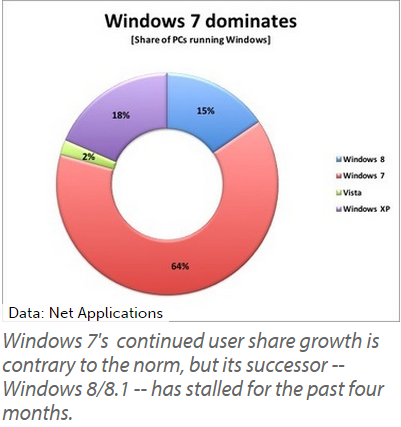
ComputerWorld reports that two-thirds of all PC users are currently running Windows 7, as of last month. Based off of Net Applications’ monthly user share tracking, these are the statistics taken for the month of March 2015 concerning the different operating systems in Microsoft’s repertoire.

windows 7 dominates

  • 64 percent of users use Windows 7.
  • 2 percent of users use Windows Vista.
  • 18 percent of users are still clinging to Windows XP.
  • 15 percent of users are using Windows 8 or 8.1.

Windows 7 is certainly a great operating system that has stood the test of time. Ever since it was released in 2009, it’s been a very popular choice amongst both consumers and business professionals. It was so well-received that it pulled support away from the overwhelmingly popular Windows XP, which lost patch and update support last spring.

rueters error

However, Windows 8 and 8.1, the most recent of the Windows operating systems to be released, have failed to entice the end user into upgrading from Windows 7. If anything, Windows 7 is still growing more popular. As of this past February, 7 has seen a 2.6 percent increase, while Windows 8 and 8.1 have just about reached their limit over the past four months.

Even though Windows 7 still has a few good years left before its end-of-support date in 2020, all good things must come to an end sooner or later. Will Windows 7 follow in the footsteps of its predecessor, Windows XP, and have countless end users forsake upgrading for an unsupported system? If Windows 10 fails to take off, this might happen, leaving many users running without vital support patches and updates. This is why using a supported operating system is so important.

The next OS to hit Microsoft’s chopping block is the server OS, Windows Server 2003. However, the main cause for concern isn’t necessarily over security, but the complications of legacy hardware and software capability with new, modern machines and applications. It’s not always easy to predict what happens to your IT infrastructure when upgrading to a brand new server.

If your office is one of those that haven’t yet made plans to move away from Windows Server 2003, or if you’re running outdated operating systems on your business’s workstations, you should make arrangements immediately to start moving toward a more modern office. You can’t afford to fall behind, and NuTech Services understands this. If you’re having a difficult time juggling your responsibilities as a business owner with incorporating imperative upgrades, we can help you manage and maintain your IT infrastructure. Just give us a call at 810.230.9455 to learn more.

b2ap3_thumbnail_windows_media_android_400.jpg

Tip of the Week: Use Windows Media Player to Sync Your PC’s Files to Android

b2ap3_thumbnail_windows_media_android_400.jpgSo you’ve got yourself a new Android device and you want to transfer all of your favorite media from your PC onto the device. How do you go about doing this? While there all several different ways you can transfer your files, one of the easiest ways is to take advantage of a program that’s already installed on your PC: Windows Media Player.

Why WMP is the Practical Choice
It may be that you’ve not before considered WMP as an option to transfer your files onto your Android device. This is because Google, the makers of Android, would prefer oh so much that you use Google Play in conjunction with Google Drive, their cloud storage solution. While you can take the all-Google route to transfer and manage your media, and to be fair, a lot of users do, it might not be the best choice for everyone.

In particular, users that have a vast library of media to transfer and manage may frown on the monthly fees associated with Google Drive. Granted, Google’s rates are extremely reasonable and Drive storage is even free up to 15GB, but $1.99 per month for 100GB and $9.99 for 1TB can add up.

Another disadvantage about using the cloud for your mobile device’s media is that you will be dependant upon an Internet connection to access it. This isn’t an attractive option for people in areas with spotty coverage and users with a limited data plan that will quickly be consumed by accessing large files.

You’ve Got Some Free Options
Without having to download any new software, you’ve already got some free options on your PC that will transfer your files from your PC to your Android device. First off, you can simply connect the Android device to your PC via USB or wireless connection and then drag and drop a file from one device to the other. This is an easy way to transfer a file. You can even select all of your files and transfer them with one big drag and drop. However, users that have a constantly-changing media library will quickly become annoyed at having to go through this process every time they add a new file.

How to Sync Your Media Using Windows Media Player
If you have an ever-changing media library, you’re going to want to take advantage of an application that has a syncing feature, like Windows Media Player. To sync your Android device using WMP, open WMP and connect your device to the PC. If this is the first time connecting the device, then you may have to download and install a driver for it, which Windows will walk you through once a connection is detected.

With your device and PC successfully connected to each other and driver installed, go to the sync tab on the right side of the screen where you should see a graphic representing your device.

media android

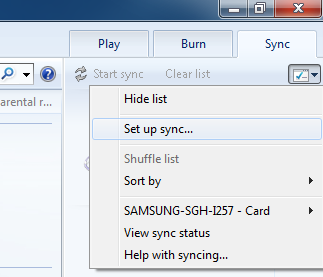
Underneath the Sync tab is a box icon with a green checkmark. Click on it for a drop down menu to appear. From here, select Set up sync…

media android 2

Now you will want to go to the Device Setup menu. The default setting will allow the device and WMP to sync automatically, meaning that any change to either library will instantly be reflected in the corresponding library every time a connection is made. To activate this automatic sync feature, along with any other adjustments you wish to make, select the Finish button in the Device Setup menu.

Upon selecting the Finish button, your computer will jump into action and begin syncing your files. Once the sync is finished, you can disconnect your device and take all of your favorite media with you wherever you go. To access the media on your mobile device, you can use the standard media player on your device, or a host of other third party media players available on the App store.

The media player that someone uses to manage and play their digital content can vary greatly depending on the needs and preferences of the user. You might be more of an iTunes kind of person, or perhaps you’re happy with Google’s offerings. When selecting a media player, don’t forget about your faithful friend Windows Media Player. You may find yourself surprised that it can do exactly what you need it to.

b2ap3_thumbnail_windows_logo_400.jpg

Windows Server 2003 End of Support Date Looms on the Horizon

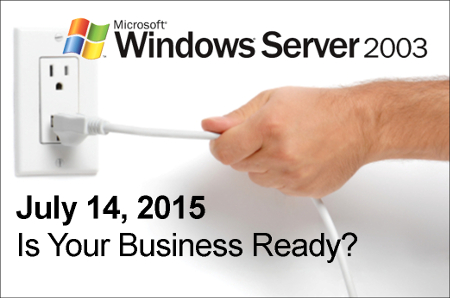
b2ap3_thumbnail_windows_logo_400.jpgThe next major operating system to get the ax from Microsoft is Windows Server 2003. Slated to have its mainstream support ended on July 14th, businesses that currently use the software need to begin making plans to upgrade their system as soon as possible. With this server operating system no longer being supported by Microsoft, your data will be vulnerable to the latest online threats.

end of support windows server 2003It’s best practice to upgrade your server’s OS (and all of your software for that matter) every time a new version is released–not every twelve years. One reason to upgrade is that the latest software is built to handle the demands of modern businesses, which gives you a competitive edge over companies running older software. Security is another big part of why you should upgrade, and in the case of Windows Server 2003, the need to upgrade by July 14th is urgent because Microsoft ending mainstream support means that they will no longer be providing security updates and patches to protect you from the latest threats.

If you want to dig in your heels and hang on to your precious Windows Server 2003, you have the option to purchase custom support from Microsoft. However, this isn’t a tangible option for the small business. According to Processor magazine, Microsoft is charging upwards of $200,000 for this service. Your business is better off just upgrading to the latest OS for your server, especially if you’re working in a field like health care that requires your technology to be up-to-date in order to comply with strict security standards.

Upgrading from Windows Server 2003 isn’t difficult, but it does require you to take an accurate assessment of your applications to find out if they can transfer to your new system. For example, you may run into some issues when attempting to move older applications that run off a 32-bit operating system to a newer OS. Issues like this can be worked around, but it requires the skills of a knowledgeable professional, which is time and expense that must be factored into the upgrading cost. When upgrading your server to a new OS, it’s best to go about it with a well-thought-out plan so that your upgrading process won’t run into any surprises that will take your server offline any longer than it needs to be.

NuTech Services can work with your business to make the upgrading process as quick, easy, and affordable as possible. We can come up with a time-saving plan that accounts for any discrepancies that might hinder the upgrading process of an older system, and we can migrate your data to a temporary server that your business can operate from while we equip your server with the latest OS. This way, the productivity of your business won’t skip a beat.

It may be that upgrading the software on an older server unit isn’t the most efficient option for your business. A lot has changed in twelve years, and your old server units have likely experienced some wear and tear and require more maintenance. Technologies like server virtualization and cloud computing may be a better data-hosting option for your business than trying to update your old system.

Whatever the best route is for your business, NuTech Services will guide you in it so that your organization isn’t stuck using older software that leaves your data vulnerable and your business inept. Call us today at 810.230.9455 to learn more.