auto_vote_digital_400.jpg

Security Concerns Have Led To New Voting Machines In Virginia

auto_vote_digital_400.jpg

Regardless of your feelings on the matter, the 2016 United States presidential election was an extremely divisive one–in no small part, due to the suspicion that the outcome of the election may have been significantly influenced by hacked voting machines. This uncertainty has led to some states making strides to ensure that their technology will no longer be responsible for such doubts.

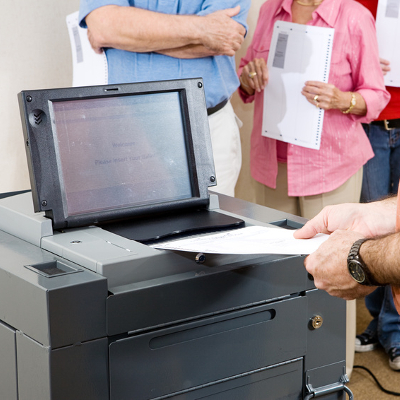
Virginia is one of those states, deciding to remove direct-recording electronic voting machines in favor of those that produce paper documentation. In addition to that, there is now legislation in Virginia that will remove all touch-screen voting devices from circulation by November 7, 2017. This is when the next governor is to be elected, along with various other positions.

According to Politico, Governor McAuliffe has pushed for legislation to provide the necessary budget to replace new voting machines, but this legislation was denied two years ago. Things have changed since then, and now the state has little choice to obtain new machines, as the old ones will no longer be certified for use.

Other states have been recommended to emulate this decision by the Board of Elections, but again–it’s only a recommendation. While paper ballots do seem to be more reliable and authentic as the tangible option, counting them can be a drag. Therefore, it only makes sense that the states would want to expedite the process with technological assistance. Even so, there is the risk that this key democratic data can be manipulated and altered.

You can find a similar scenario much closer to home, in your very own business. If your systems aren’t painstakingly maintained–as many states’ voting machines are not–they can be vulnerable to numerous hacks and other attacks. Do you really want to risk your sensitive data when a solution is so easy to find?

NuTech Services’s technicians can help give you the ability to better prepare for a successful future for your business. One way is by equipping you with a Unified Threat Management tool that helps protect your business from threats before they have a chance to strike. Call 810.230.9455 for more information.
files_computer400.jpg

Do You Have a Data Backup In Place?

files_computer400.jpg

Take a moment to imagine the absolute worst disaster scenario for your business. Does it involve a catastrophic event destroying your office building? Does it include key staff being absent from the office for extended periods of time? Does it include your business suffering from data loss or security breaches?

Most businesses that fail to recover their data following a data loss scenario go out of business within a year of the incident. Furthermore, there are a lot of small businesses out there that don’t necessarily see the value in a proper data backup system. Most just assume that they will be able to survive a loss incident, or they feel that a data loss incident won’t happen to them. This is not the right mindset to have for a business owner–especially not one that has the future of their business at heart.

Instead, you need to imagine the worst-case scenario and ask if your business continuity plan includes a data backup solution to minimize damage and downtime. Here are three ways that a cloud-based Backup and Disaster Recovery (BDR) solution can help your business survive even the worst data loss incidents.

Multiple Backups Daily
Traditionally, businesses have relied on tape backup for most of their backup needs. Due to the increased strain on your network, tape backups need to be performed during off-hours, and only once a day. The problem with this is that you could potentially lose up to an entire day’s worth of data and progress. Cloud-based BDR takes multiple backups as often as every fifteen minutes, which allows for higher redundancy.

Cloud-Based Storage
There’s something to be said about the cloud and its ability to make data backup storage far easier. Thanks to the cloud, a BDR device can take and store multiple backups in secure, off-site locations for later access. After all, you can’t store your backups in the same location as the rest of your data. What if you were to experience a major disaster, like a flood or ransomware infection, which leads to the destruction of your in-house data infrastructure? When this time comes, you’ll be glad you’re storing data in the cloud and away from the site of the incident.

Reduced Downtime
When your business can quickly restore data in a moment’s notice, the amount of downtime suffered drastically falls. This helps your business stay active even under the worst circumstances. BDR can instantaneously restore your data to the network-attached device, allowing your organization to quickly get back in action following a downtime incident. The BDR device can even act as a temporary server while you make more permanent arrangements.

How does your business protect itself from data loss? Let us know in the comments, and be sure to reach out to us at 810.230.9455 if your business needs help with its technology.

Wordlogo400.jpg

Tip of the Week: 3 Useful Microsoft Word Features

Wordlogo400.jpg

Microsoft Office’s Word is undoubtedly one of the most popular word processing software in the world, perhaps even the most popular. Still, there are many people who use Word on a regular basis without putting the majority of its features to use. Here’s three more Word capabilities that you’ll find very handy.

Change the Case of your Text
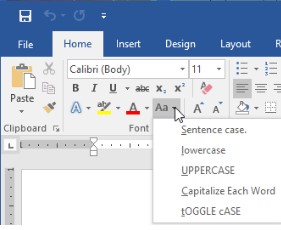
HAVE YOU EVER ACCIDENTALLY WRITTEN SOMETHING ENTIRELY IN CAPS? It happens to everyone. However, many people don’t realize that you don’t have to delete everything and rewrite it. Microsoft Word has a handy feature that allows users to change the case of your text. You can choose from: Sentence case. Lowercase. UPPERCASE. Capitalize Each Word. and tOGGLE cASE.

word ib 1

Auto-Update Date & Time
Even though the majority of business correspondences are done digitally, there are still some times when you need to write a good ol’ fashioned direct mail letter. For example, many businesses like to send a welcome message/onboarding letter to new clients. These letters will probably be uniform, with some personalization for each client. Word offers some assistance in making sure the information is updated in the letter. One very handy one when working with templates is the auto-update Date & Time feature.

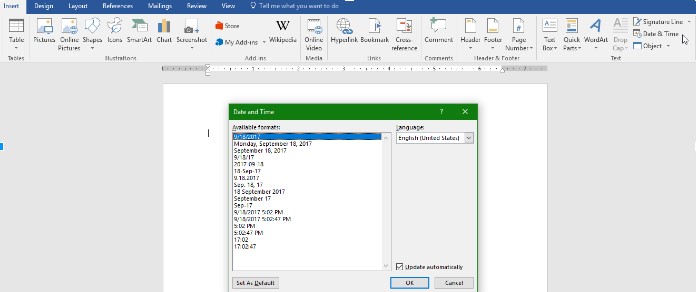
Under the Insert tab, click the Date & Time button and a pop-up window will appear. Click the date format you want and then be sure to click the “update automatically” box in the bottom right corner. Now the date will automatically be updated every time you open (or print) the document.

word ib 2

Get Rid of Unwanted Formatting
Most people who use Microsoft Word on a regular basis have had to deal with accidentally pasting text that held the formatting of the document you copied it from. This contagious font will even take over the rest of the document, following the formatting of what was pasted rather than your desired format.

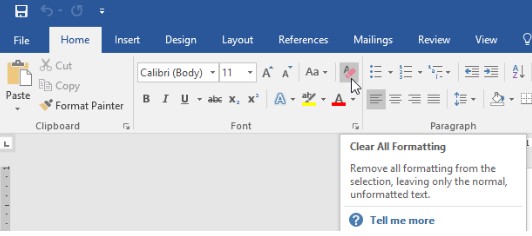
Word has a command that you can use to Clear All Formatting. It can be found in the menu and its icon looks like the letter ‘A’ with a pink eraser. You can also use the keyboard shortcut: Ctrl+Space

word ib 3

For more great information about the software you use every day, visit our blog regularly.

noc_monitor_remotely400.jpg

How Remote Monitoring and Management Can Help Your Business

noc_monitor_remotely400.jpg

As a small business, your assets are limited more than you’d like them to be. You have a budget that yearns for more flexibility, and there are only so many hours in the day to accomplish all of your goals. Thankfully, in an era that’s more connected than any that came before, modern technology provides solutions to businesses that need to get a little more value out of their budgets. One of these solutions is called remote monitoring and management.

Imagine having a persistent computer problem that you don’t know how to solve. It’s been bugging you for a while now, but you don’t have an in-house IT department to fix the problem. Imagine having the ability to log into a service portal and put in a ticket explaining what the problem is. A technician will see this ticket, send you a quick reply, and arrange for a time to remote into your computer to solve the issue for you. Imagine how convenient this would be!

Remote monitoring and management is a great tool that allows your business to take advantage of the many wonders of the connected world, all for the sake of keeping your business running as smoothly as possible. We’ll give you a few examples of how your organization can take full advantage of remote monitoring solutions.

Update and Patch Implementation
Have you ever had to install patches and security updates on every single computer in your office? It can be a frustrating and time-consuming task, especially considering how often these updates need to be implemented. Remote monitoring and maintenance allows our technicians to remote into your computers and deploy the patches and updates all at once, without an on-site visit.

Security Monitoring
Have you ever been concerned with network security? You’re probably wondering how you can keep threats out of your infrastructure when you don’t know they exist. One of the best ways you can do so is by having technicians remotely monitor your network for security troubles. It’s not even limited to just threats, either. We can remotely monitor your network for any troublesome developments, like signs of hardware failure, that could create large issues down the line.

Quick and Easy Service
Waiting around for someone to fix your computer wastes time that could be better spent on other tasks. You can take back this time by having a technician remote into your devices in order to resolve issues, rather than waiting for a technician to arrive on-site to resolve them. Sure, there are more pressing issues that require on-site assistance, but most issues can actually be solved remotely.

Could your business use remote assistance from time to time? NuTech Services can help with that. To learn more, reach out to us at 810.230.9455.

ai_head_circut400.jpg

Artificial Intelligence Can Be Useful To Hackers, Too

ai_head_circut400.jpg

Man matching wits with computer isn’t new territory. In 1830, a locomotive raced a horse to see which was superior in terms of speed and distance. 1956 saw the first time a human played chess against a computer. Today, the time has come when an artificial intelligence has begun to break into a new territory that was dominated by humans for thousands of years: crime.

At a recent technology expo, a human hacker and a sophisticated computer that is capable of machine learning each attempted to spear-phish as many victims as possible through Twitter. For two hours, both entities refined their message in an effort to be more effective against the target. At approximately 1.075 tweets per minute, the human was able to make 129 tweets, 49 of which were successful. The computer was able to make 810 tweets in two hours, which is about 6.75 tweets per minute. In that time, 275 victims were converted.

Even though humans had a higher attempt-to-victim percentage, the machine was able to get 5 times as many victims in the same amount of time.

In a Cylance poll held during ConFab, attendees were asked if criminal hackers will use AI for offensive purposes in the coming year, to which 62 percent answered in the affirmative. Even though no one could cite any specific incidents, the overwhelming consensus among experts is that hackers have already begun using AI. Like all high-tech crimes, AI is a global issue that changes fast and often, making it extremely difficult for law enforcement to find and prosecute perpetrators. Even when they’re able to identify offenders, they often run into issues where the laws and statutes are well behind the technology in question.

Another reason that identifying and combatting AI is so difficult is because there are constant debates among experts around the globe on what exactly constitutes as AI. Think about it like this: millions of people consult virtual assistants, like Siri and Alexa, every day. However, if you ask the majority of them if they were using artificial intelligence, they’d say ‘No.’ In reality, they are both examples of AI being put to use to enhance the lives of its users.

There are a lot of potential uses for AI by cyber criminals. For example, hackers could use machine learning capabilities to write programs that personalize emails with malware attachments. As that technology is developed, there will likely be a time when distinguishing actual email and phishing attacks is nearly impossible. Another probable use of machine learning and AI for hacking is drastically reducing the time and resources it takes to find and exploit vulnerabilities in software though automation.
For a small business, AI might not be not something that you need to concern yourself with – and perhaps it isn’t, at the moment. However, AI is already being incorporated into many aspects of business with great success and many experts feel it will be very important in the near future. What do you think? Would you be willing to give AI a try? Let us know in the comments!

oreo_phone400.jpg

Tip of the Week: Android Oreo Is Double-Stuffed With Features

oreo_phone400.jpg

Earlier this year, Android released Oreo, version 8.0 of their popular mobile device operating system. Whether you’ve already updated to the latest version of this OS or are still waiting for your update, it has several new or improved features that you’ll want to consider using. Let’s look at five of our (many) favorite additions to the OS.

Autofill Passwords for Apps – Considering the widespread popularity of using an application over accessing programs within your browser, Google has decided to bring autofill beyond its use in the Chrome browser. The ability to autofill and store passwords for applications are a feature that many people will welcome.

Picture in Picture – Have you ever been in a video conference on your mobile device at the same time you needed to access an email or other information from an application? With Android Oreo, you can continue a video call or view a clip started in Chrome using the picture-in-picture mode by just tapping the home button when the video is playing.

New Emojis – Even though the use of emojis in business correspondence is marginal, they’re still one of the features that users are looking forward to with the Android Oreo release. Luckily, many mobile devices are used for both professional and personal communications, which means that you’ll have plenty of opportunity to use these fun additions to your library of emojis.

Smart Text Select – Anyone who regularly uses a computer likely considers the Select Text, Copy, and Paste functions to be very handy tools. To improve functionality, Oreo has introduced a Smart Text Select feature that is much easier to use than trying to drag and highlight text manually on your smartphone.

Snooze Notifications – Especially when you use a mobile device that for both work and personal uses, you’re probably going to receive notifications that you might not want to deal with immediately – but would like to check out a bit later when you get a chance. With Android Oreo, you can snooze notifications. Simply swipe to the right on the notification until a clock icon pops up. From there, select the amount of time you want to delay the notification by and go back about your regularly scheduled activity.

How do you feel about Android’s latest release? Have you found any other useful features? Or perhaps you still prefer to use iOS, regardless of how many new features Android adds? Sound off in the comments! We’d love to hear your opinion!

data_security_switch400.jpg

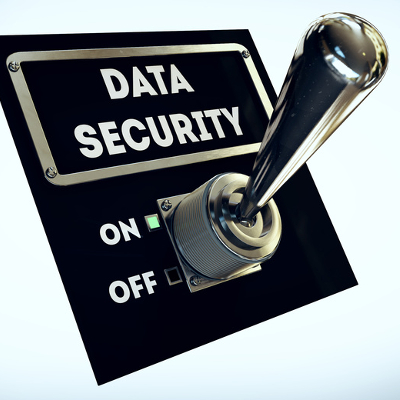
3 Ways Your Business Can Prioritize Data Security

data_security_switch400.jpg

In the wake of the Equifax data breach, which placed the personal information of 143 million users at risk, the issue of data security is at the forefront of social consciousness. Your organization needs to go about its daily business as if it will experience a data breach at any given moment. This involves looking at the worst-case scenario, and planning for it so that you’re never caught unaware.

Here are three preventative measures that you can take to secure your business.

Use Strong Passwords and Two-Factor Authentication
Passwords are often the only thing standing between your online accounts and your personal data. Think about it; a string of maybe 8-to-10 characters is the only thing keeping your sensitive information secure. Doesn’t it make sense to make this password as complex and difficult to crack as possible? You would think so, but a surprising number of folks still use the word “password” as their password. You should be using both upper and lower-case letters, numbers, and symbols, formed into a seemingly random string of characters. Doing so keeps hackers from guessing your password and accessing an account.

Secure Your Network with Unified Threat Management
Network security depends on both internal and external measures, which include network-attached security devices like a Unified Threat Management (UTM) tool. A UTM consists of an enterprise-level firewall, antivirus, spam blocker, and content filter, all to keep threats from taking root on your network in the first place. Furthermore, you’ll be able to react to issues that become prevalent before too much damage is done, which is a valuable opportunity in its own right.

Educate Your Users on Best Practices
Your employees access important information on a day-to-day basis, and they are often in contact with more threats than you’d like them to be. Something as simple as a spam message in the wrong inbox or a carefully disguised link could be all it takes to expose your business to dangerous situations. Take the time to teach your employees how to identify potentially dangerous scenarios, like phishing phone calls and sketchy emails or attachments. Often times, you’ll stop attacks from taking off simply by keeping your employees informed.

By using these three methods to secure your organization, you’ll be less likely to suffer from a data breach. To learn more about network security and other ways to keep yourself secure, subscribe to our blog, and call our IT professionals at 810.230.9455.

sledge_hammer400.jpg

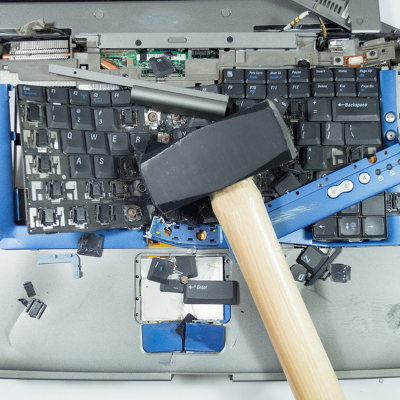
Without A Data Backup, You Aren’t Ready

sledge_hammer400.jpg

Most modern companies rely on computers to at least some extent, particularly if there is some sort of delegation of services involved. Whether it’s an office filled with computers and server units, or simply a retailer with point-of-sale equipment, the companies of today need computers and data in order to function as intended. To protect this data, you need a method to preserve it–which is where data backup comes into play.

Your business’s data is susceptible to all sorts of danger stemming from malware, hackers, hardware failure, and even user error. It doesn’t take much to expose your data to something that could cause it harm, so it makes sense that you should have a plan put into place to protect it. Most small businesses that fail to recover from a disaster within 18 months following a data loss incident will be forced to cease operations, which showcases the importance of data backup. What’s the best way to combat data loss?

A Backup and Disaster Recovery, or BDR, is a great way to protect your network and data infrastructure. It’s a network-attached backup system that allows you to take a preventative stance against even the worst disasters. Since the device is attached to your network, it can perform backups at various increments automatically. All you have to do is set which parts of your infrastructure you want it to back up. Furthermore, you can set it up so that backups only occur on files that have been changed since the last one has been taken, allowing for a more lightweight solution.

The most important part of BDR is that your data is automatically uploaded to the cloud. The best part of this is that it’s safe and secure, tucked away from anything that could cause it harm. While your data is hosted in an off-site data center or the cloud, it’s protected and prepared for the worst, allowing your organization to ensure survival even under the most desperate situations. It’s just one way that preventative thinking can help your organization avoid downtime and the immense costs it can accrue.

To keep your organization from suffering due to data loss, a BDR solution is your best bet. To learn more, reach out to NuTech Services at 810.230.9455.

travel_computer400.jpg

Tip of the Week: The Holidays Can Be A Time Of Work And Play, Even While Traveling

travel_computer400.jpg

The holidays are approaching, whether we are ready for them or not. With the holidays comes time off, which means that it’s awfully easy to fall behind post-vacation. Another concern is the amount of identity theft and credit card fraud that comes about during this time of year. We’ll discuss some of the many ways that your organization can take advantage of technology this holiday season without putting yourself in harm’s way.
Know Your Wi-Fi Options
You can’t be productive without an Internet connection. This includes either mobile data or Wi-Fi. Chances are you’d rather look for an open wireless network than waste your mobile data, but unsecured networks can put your data at risk. One option you have is to check the reviews on sites like Yelp! and Trip Advisor to see what other guests have to say about Wi-Fi connections. Ideally, you want a VPN to secure your data while it’s in transit.
Bring Along Extra Accessories
You never know when that extra LAN cable or micro-USB cord will come in handy. Furthermore, if you’ve ever done any traveling, you’ll know that buying new equipment from an airport can be more expensive than you’d like.

Carry On Your Devices
If you need to travel for business, be sure to put your devices into your carry-on baggage at any airport. The last thing you need is for a screen to get cracked while your luggage is rolling around the cargo area of a plane. Furthermore, you don’t want your luggage to be either lost or stolen while in-flight. It’s just safer for you to keep anything important in your carry-on luggage.

Be Wary of Free Wi-Fi
You should keep your device from automatically connecting to any open wireless connection that it latches onto. The reasoning for this is that hackers will literally lurk on them, waiting to steal any data that presents itself to them. This can put both your own data and that of customers at risk–all because you checked your email.

Turn Off Your Autofill and Password Management
A password manager keeps you from entering in the same information over and over, but it should be disabled while you’re traveling. What if someone steals your device? They would have access to anything that was auto-filled on it. It’s like leaving the keys to your car in the front seat without locking the door. It’s not impossible to go a few days without auto-populating passwords, and it sure beats the fallout of losing a device.

Use External Drives and USB to Back Up Data
What if you are working on a project while out of the office on vacation, and you misplace your device or it’s damaged beyond repair? All of that progress would be gone. Now, imagine that you have that data backed up to an external hard drive. Now you don’t have to worry about losing data or progress while working out of the office.

There are just a few practices that can keep your organization from succumbing to the dangers of traveling and working at the same time. If you have any questions, thoughts, or concerns about using technology while out of the office, reach out to us at 810.230.9455.

ponzi_pyradmid_money400.jpg

Cybercriminals Who Use This Malware Will Get A Nasty Surprise

ponzi_pyradmid_money400.jpg

Do you know what a botnet is and how it works? It’s basically a network of infected computers that can be used to perform Distributed Denial of Service attacks, overloading target networks and forcing them to endure downtime. They can also be used to distribute malware and other threats. What’s worse than this, you ask? Hackers can purchase botnets on the black market to use against their targets, but a new type of botnet strain is changing the way this works.

The black market is no stranger to sketchy sales. Users can pay with Bitcoin for the development of malware and other threats without knowing the first thing about hacking or technology. However, this convenience comes at a price, as any users of the new Cobian botnet now know. The malware involved–njRAT–surfaced in 2015 and includes a lot of terrifying features. Hackers can use a keylogger, webcam control, remote code execution, and even screensharing, just by shelling out some Bitcoins to a fellow hacker.

What these would-be hackers don’t know is that the developers include encrypted code which allows them access to the master control switch of the botnet. In other words, while users are purchasing their own botnets to use for whatever they want, full control of any botnets purchased is held solely by the developer of Cobian.

NakedSecurity describes the way that the botnet masks its presence, as well as how the threat activates when it’s time for its master to take over: “Cobian’s executable payload disguises itself as a Microsoft Excel file. Cobian’s secondary payload then checks to see if the second-level operator is online. If so, then the code that enables the author to acquire master control operates to evade detection. If the second-level operator is offline, the secondary payload acquires the address of the author’s command and control servers from Pastebin.”
It just goes to show that you can never trust a hacker–but you probably already knew that. This story should be a lesson for businesses that don’t suspect they are at threat of a hacking attack. If anyone can access threats like a botnet, you’ll need to step up your defenses to keep your business safe. NuTech Services can help with this task–to learn more, reach out to us at 810.230.9455.

managed_it_services_good_for_your_business_400.jpg

Don’t Underestimate The Value Of Managed IT

managed_it_services_good_for_your_business_400.jpg

Have you had to make substantial technology investments in the past year? How much money do you think you will spend this year? If you have a solid technology budget in place, you’ll know how much you expect to spend, but what happens if critical systems fail? Are you prepared to cover the cost of new technology, the management of that technology, and the staff that you’ll need to do so? If you are even a little unsure about it, managed IT services could have plenty of value for your business.

There are two critical facets to every IT strategy. The first is based in demand. What technology does your business need to be MOST successful? Do you need one server to deploy the software that your company uses? Three? Five? What do you do for communications? What do you do for storage? There are a lot of variables at work when deciding how to deploy technology solutions, and since there is so much cost associated with these systems, many businesses cut corners to provide their organization with technology solutions but end up putting their overall sustainability at risk.

The second facet, and often most costly, is based in supply. Your supply of technology has to be monitored, managed, and maintained to provide you a reasonable ROI on your technology investments. Typically, the cost of onboarding, training, and deploying a proficient technician far outweighs the cost of new technology; and, to make matters worse, the more technology your organization deploys, the more resources you need to have to ensure that all is running efficiently, and as intended. After all, the downtime that comes with fledgling technology, is a major problem for any organization.
NuTech Services can often provide a substantial cost reduction, better services, better technology, and a better return on your technology and management investments than buying new technology all the time, and hiring people to manage it. We utilize industry-leading remote monitoring and management software, leverage automation, and dispatch certified technicians to help businesses like yours build and maintain robust technology. We also have partnerships with some of the industry’s best vendors to ensure that every client has access to the technologies they need to build an efficient and secure IT infrastructure.

By delivering comprehensive IT management, our managed IT services are exceptionally valuable. If you run an Michigan business that is looking to improve your processes, deploy powerful technologies, and manage the technology you have, call us today at 810.230.9455.

Wordlogo400.jpg

Tip of the Week: Use Microsoft Word To Create Envelopes For Your Contacts

Wordlogo400.jpg

Microsoft Office has long been a valuable asset for all types of businesses, but would you be surprised to hear that most organizations don’t take full advantage of it? All of the most recent editions of programs like Microsoft Word, Excel, and PowerPoint are designed with powerful, user-friendly interfaces that allow your business to do lots of neat things. In fact, you can create a professional envelope for your organization, add a list of contacts from a CSV file or from Outlook, and so much more.

Step 1: Open a New Document
Blank Page

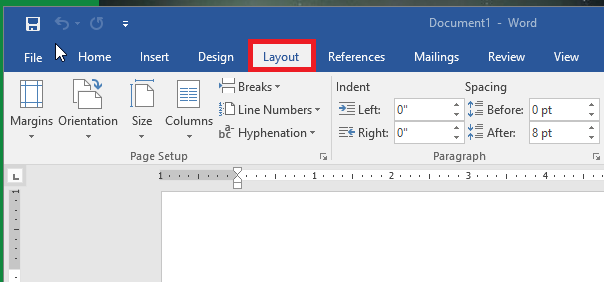
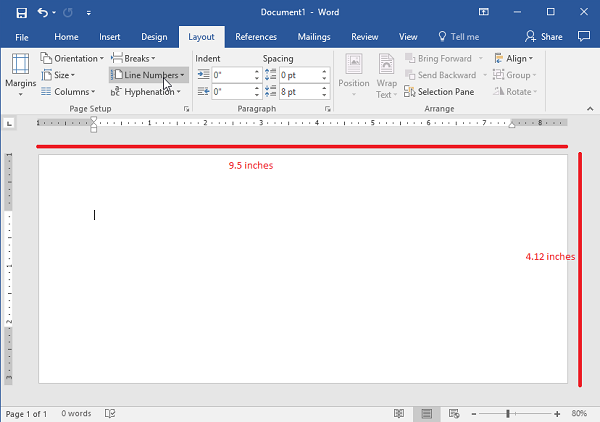
Step 2: Access the Layout Menu
Layout

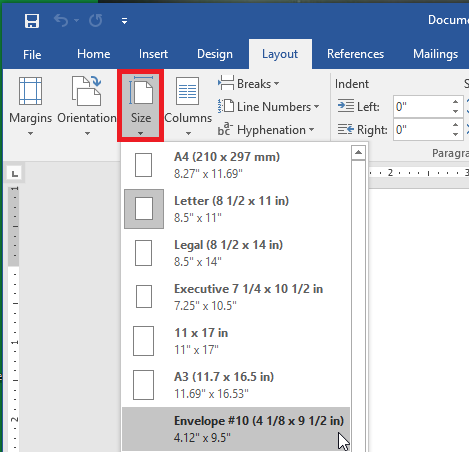
Step 3: Change the Size of the Page
You want the page to be set to the proper envelope size. If you need to know what size your envelopes are, try checking the box. #10 is generally the traditional letter envelope.
Envelope 10

Step 4: Check the Layout
Before proceeding, make sure that the layout has changed to the proper size.
Envelope 10 Resize

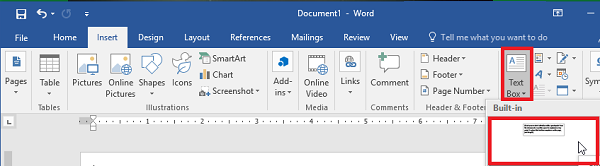
Step 5: Go to the Insert Tab and Select Text Box
Insert Tex Box

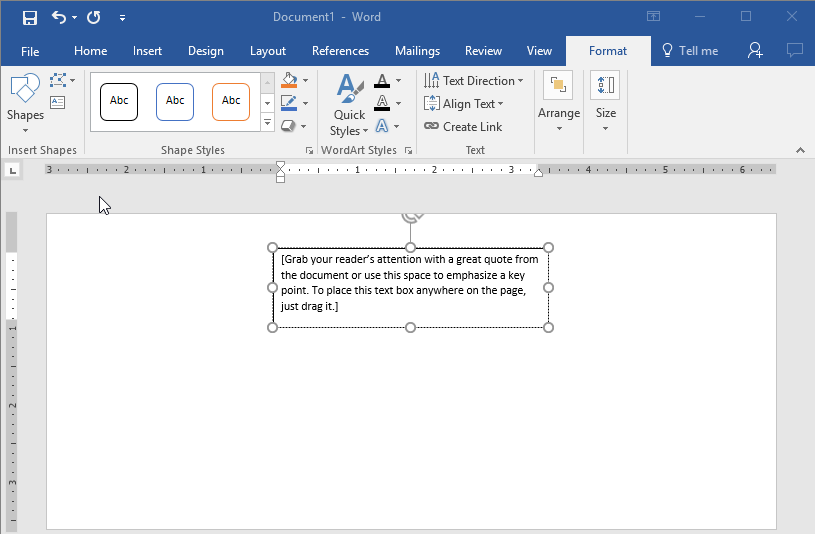
Step 6: Use the Simple Text Box Option
This will be used for your return address.
Insert Tex Box2

Step 7: Update the Address and Draft the Text to the Desired Location.
Drag to Position

Step 8: Remove the Border Around the Text Box
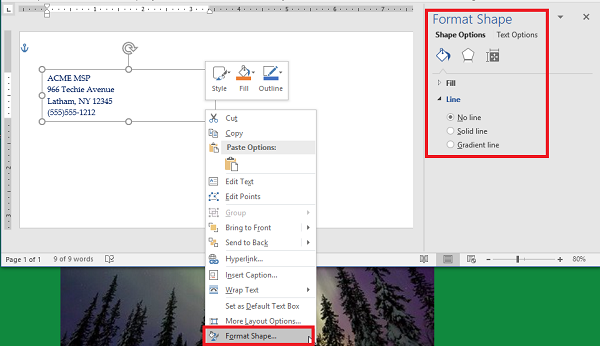
You can do this by right-clicking the box and selecting Format Shape. Switch the radial button from Solid Line to No Line.

Remove Border

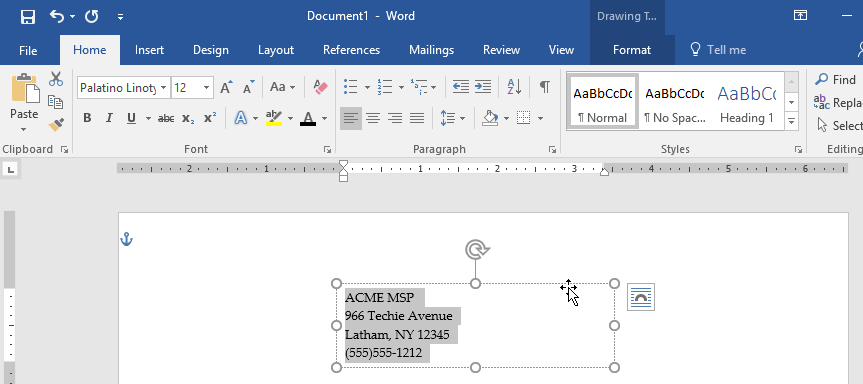
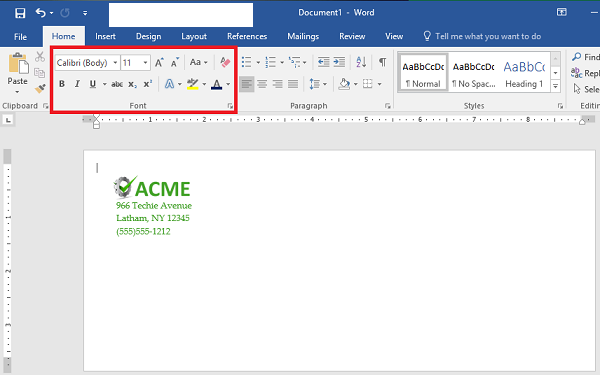
Step 9: Style and Brand Your Return Address
You can use the Font options to customize the appearance of your return address. Make sure you don’t forget your logo.
BrandingAddress

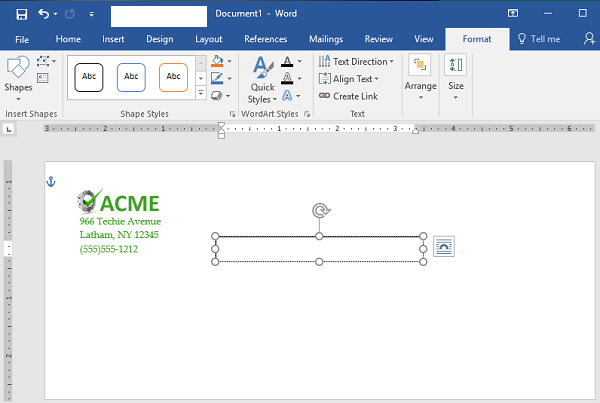
Step 10: Start Your Mail Merge
First, let’s add another Text Box. You should remove the standing text and leave the cursor right where it is in the box.
Mail Merge 5

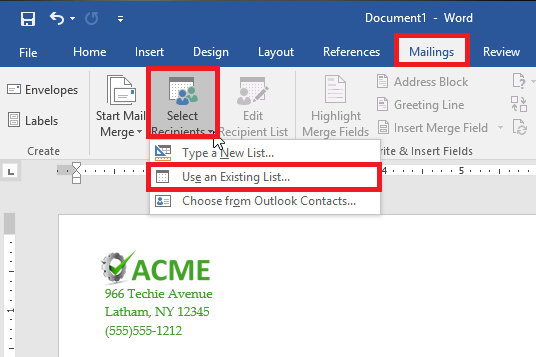
Step 11: Load Your Contacts
To do this, access Select Recipients and check the source of your contacts. You’ll need a CSV file for this next step.
Mail Merge 1

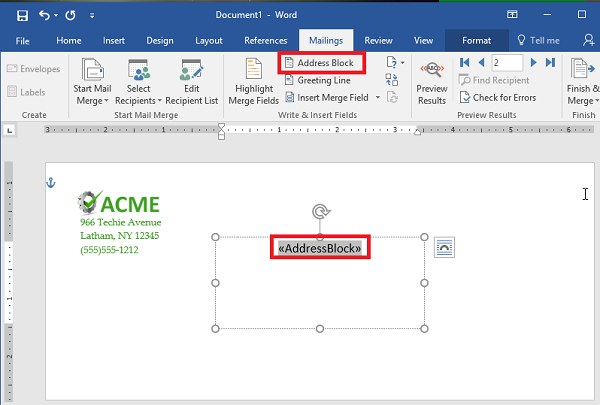
Step 12: Select Address Box. This appears in the text box that you created earlier.
Mail Merge 6

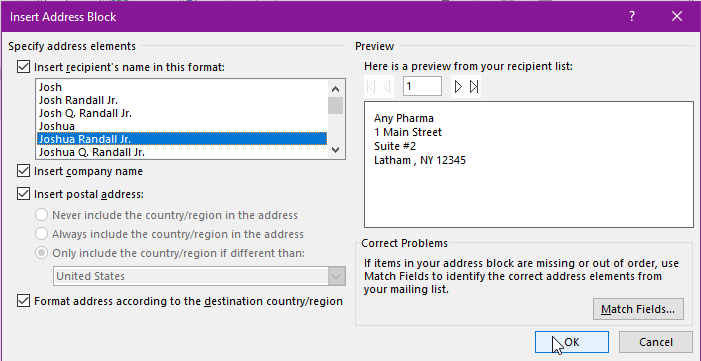
Step 13: Follow the Directions to Format Your Address
Mail Merge 4

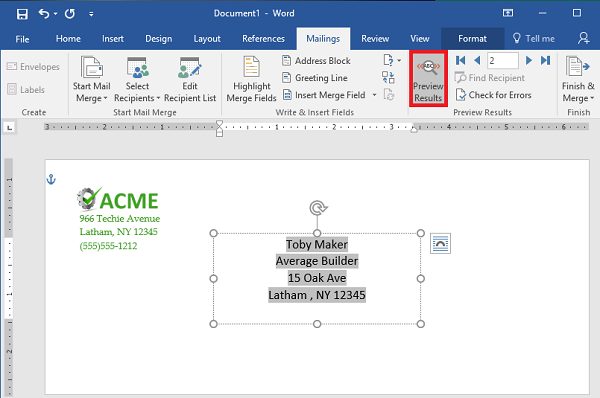
Step 14: Preview Your Results
Use the Preview Results option to check that the addresses are displaying properly, are simple to read, and fit on the envelope. This might change depending on how many recipients you have. Just scroll through them to ensure that the formatting remains the same throughout them all.
Mail Merge 7

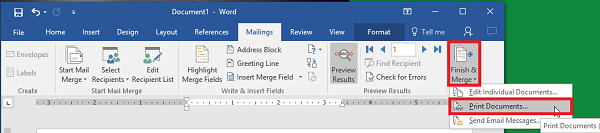
Step 15: Save or Print
That just about wraps it up. You can finish your work or print them out as you see fit.
Mail Merge 8

For more great tips and tricks, subscribe to NuTech Services’s blog.

windowsinkofficiallogo400.jpg

Why Windows Ink Is So Useful In The Business Setting

windowsinkofficiallogo400.jpg

While computers, laptops, and tablets are incredible tools for productivity, there are many who miss the ability to scrawl out their ideas by hand. However, Microsoft has developed a means for your business to enjoy the benefits of both approaches with Windows Ink.

You may be familiar with the digital tablets that many artists use to transpose their ideas directly into their computer. The concept behind Windows Ink is very much the same. The primary difference is that, rather than using a separate tablet that you plug in via a USB connection, Windows Ink enables you to take notes right on the screen of your device with specialized writing utensils.

Naturally, as a Windows (and by extension, Microsoft) tool, Windows Ink is particularly suited to working with Microsoft Office products.

  • Microsoft Word: Windows Ink not only allows you to mark up documents, but allows you to edit them with different settings and gestures. Among other features, you can turn your stylus into a high-precision highlighter, or delete unwanted words or sections with a quick strikethrough.
  • Microsoft OneNote: With Windows Ink, OneNote turns into a freehand calculator. If you write an equation in the workspace, you can get the answer instantly–or, if you want to polish your math skills, OneNote will take you through the process step-by-step.
  • Microsoft PowerPoint: If you have ever used PowerPoint and wished that you could do more than what the toolbar allows you to do, Windows Ink is for you. Using the built-in ruler that comes with Windows Ink, you can draw with more precision than ever. Plus, Windows Ink gives you the ability to replay whatever notes others have made on a PowerPoint file.

Of course, there’s more that Windows Ink can do than work with the various programs of Microsoft Office. For instance, if you use Windows Ink to jot an address on a sticky note, Maps will step in to find you the best route. Another useful utility Windows Ink offers is its ability to take screenshots that you can then put notes on, allowing your reaction to be more easily understood.

The utility of Windows Ink in an office setting should be clear. Communications can be condensed from emails that list out the edits that a document needs, to contextual notes being made directly on the document itself. Windows Ink can essentially turn your device into an interactive notebook, allowing you improved utility and increased potential for productivity.

To learn more about Windows Ink and other useful solutions for your business, reach out to NuTech Services at 810.230.9455.

fbi_cybersecurity_400.jpg

Essential Cybersecurity Tips From The FBI

fbi_cybersecurity_400.jpg

In 2016 former President of the United States Barack Obama passed the Cybersecurity National Action Plan that implemented near-term action and developed a longer-term strategy of bringing awareness and protections to public computing systems connected to the Internet. The strategy is to make an immediate effort to empower citizens to protect their own privacy, while also maintaining public safety and national and economic security, as many of the most critical systems this nation utilizes are networked on the web.

For the average small business, it is more crucial than ever to avoid the pitfalls that lay on the internet. Victims of cybercrime deal with an endless number of issues, including drops in revenue, data loss, downtime, and fines/restitution if they are unable to keep their networks secure. Below are a number of line-items that the Federal Bureau of Investigation recommends to keep your data secure, and to avoid becoming a victim of the most pressing malware on the Internet today: ransomware.

  • Raise Awareness: Ensure that you make a point to make your staff cognizant of the threat of a ransomware infection.
  • Updates and Patches: Make sure to patch your operating systems, software, and firmware on all of your digital assets.
  • Auto Update Security Software: Lean on enterprise-level antivirus and anti-malware software to conduct regular scans and catch potential malware.
  • Limit Super Users: Ensure that you don’t just hand out administrator access to your mission-critical systems. Managing access is one of the best ways to keep untrustworthy entities out of your network.
  • Access Control: As stated above, access control is essential to ensure that you know who can and should be in parts of your network. If your users only need read-specific information, they don’t need write-access to files or directories, mitigating risk.
  • Filters and Application Control: Deploy software restrictions to keep programs from executing from location where ransomware may be found. This includes temporary folders found to support Internet browsers and compression/decompression programs.
  • Data Backup & Disaster Recovery Plan: Create data redundancy by having a comprehensive backup and recovery plan in place.
  • Multiple Storages: Ensure that each storage unit is stand-alone to avoid major problems with backups and other forms of storage.

Governments absolutely have to have a strategic plan on how to deal with cybercrime, and as a solid practice, businesses should follow suit. If you want to make sure your strategies are top-level, visit https://www.fbi.gov/investigate/cyber/news to see what the FBI is doing to protect their computing infrastructure. For more great security information, subscribe to our blog.

start_menu_tips_400.jpg

Tip of the Week: Miss The Start Menu From Windows 8? Here’s How To Bring It Back

start_menu_tips_400.jpg

Remember how when Windows 8 came out, it had that slick tiled Start screen? If you are one of the people who miss that interface, you are in luck. While Windows 10 returned the nostalgia of the traditional Start menu, you can emulate the experience of Windows 8’s tiled screen relatively easily in Windows 10.

First thing’s first–open your Start menu and select the Settings icon. This is the gear-shaped one. Alternatively, you can simply use the Windows key and the I key for a keyboard shortcut. Next, you’ll want to navigate to Personalization > Start. You should see the option for Use Start full screen. Once you’ve turned on this setting, your Start menu should open into the full-screen mode.

While it doesn’t quite look exactly like its Windows 8 counterpart, it has some similar functionality built into it. You’ll see icons for all of the usual suspects, including apps that you use on a regular basis, and icons for opening up various menus. You’ll also be able to see your pinned tiles in an easy way. Another note is that this can actually make navigation a little bit easier if you are using Windows 10 on your tablet.

If you want to just use the normal Start menu and change the size of it without going full-size, you can do that as well. Just open your Start menu and click on the edge. You can click and drag your Start menu to suit your specific size needs. You’ll see more tiles depending on how large you make it.

Speaking of Windows 8, are you still using it for your business’s needs? If so, you should really consider upgrading to Windows 10. If your business is struggling to implement the latest and greatest software solutions, or you just want all of the best tips and tricks, reach out to NuTech Services at 810.230.9455.

mobile_device_management_400.jpg

Your Guide To Mobile Device Management as an SMB

mobile_device_management_400.jpg

The use of mobile and personal devices for work purposes can be beneficial to your business operations. When handled, and supported properly, they have been shown to improve communication methods and increase productivity. However, the popularity of mobile computing, as well as the Internet of Things’ rapid expansion, means it’s more important than ever to make sure that you don’t allow dangerous devices to access your network. To keep your network safe, there are a few Mobile Device Management best practices that you should begin enforcing.

Define Acceptable Devices and Limitations: To prevent the abuse of your network, it’s a good idea to define which type of devices are allowed. Even though there have been some improvements in IoT security, many devices still have no defense and put your network at risk when connected. A good way to protect your data and network is to only allow network access to devices that can be used in a professional capacity.

Of course, there is also a distraction-factor when there is an excessive use of these devices – even if they’re technically allowed. For example, if you have several employees with smartphones, laptops, tablets, and wearable devices that are all constantly sending and receiving data, the likelihood of interruption increases and productivity decreases. Consider limiting the number of devices per person that are allowed to access your network at one time.

Develop Access Policy: One of the biggest reasons for data loss is accidental human error. To make your employees aware of the dangers of abusing the use of mobile devices on your network, it’s a good idea to create a policy that makes them aware of their role. The policy should include password requirements, antivirus expectations, privacy terms, data loss security reporting process, and even things like penalties of texting and driving while using a company device.

Mobile Device Management Solutions: To take that extra step beyond developing/enforcing a policy regarding the use of mobile devices, a mobile device management solution (MDM) gives your company more control over mobile devices on your network. MDM applications enforce proper use, as well as requiring maintenance and security patches to be up-to-date. Many of these MDM solutions have the ability to remotely wipe data from the device in the event it’s lost or stolen.

Studies show that employees who are allowed to use their personal mobile devices for work are more satisfied with their job. Smartphones and mobile devices are a permanent part of business technology and can’t be ignored. With the constant threat of cybercrime, SMBs need to be vigilant about allowing only authorized users to connect mobile devices on their network. Questions on keeping your network safe or if an MDM solution is right for you? Contact us at 810.230.9455.

microsoft_office_collaboration_400.jpg

Microsoft Word Makes Collaboration Easier With Co-Authorship

microsoft_office_collaboration_400.jpg

Does your workforce have the option of working together on a document in Microsoft Word? This type of collaboration is something that is much desired in business today. One of the best ways to take advantage of this collaboration is through Microsoft Office 365’s built-in sharing features, which allow your workforce to work together on various initiatives.

Cooperate and Collaborate
If you need multiple users to access the same document, you can use Microsoft Office 365 to allow for it. You can review and edit documents in real time, but before doing so, you need to allow access to these documents by your staff. 

First, open a new document in Word 2016 or Word Online. Once you’ve done so, select Share, and then Save to cloud. You can share the document in OneDrive or in a SharePoint Online location. Once you press Save, you’ll be able to share your document. Just select the Share panel and you’ll have several options for doing so. You can select Invite people to summon additional assistance from others in your organization, or Get a sharing link to send the invite out through email or instant message.

Once the invitations are sent and accepted, your team can then access the Word document and make changes. If you allow these changes to be made automatically, everyone will be able to see them as they happen.

Communication is Critical
You can’t have collaboration without communication. There are plenty of solutions available that help your business keep in touch while working together on a project. Microsoft Office 365 has a leg up on the competition because of its built-in integration with Skype for Business, allowing you to send messages or talk to anyone while working in a document.

Word also keeps a complete record of any changes made to your document so that you always have access to various versions of your documents. This makes it quite an excellent way to see who has made which changes, and when. Of course, the best collaboration happens when your workforce knows the endgame of the project, and they can then work toward a common goal moving forward.

In fact, many of these features are also available in other Microsoft products, including Publisher, Excel, PowerPoint, and more.

Which of these features do you use most often in Office 365? Let us know in the comments, and be sure to subscribe to our blog for more great tips and tricks.

android_file_transfer_400.jpg

Tip of the Week: Drag and Drop Between Android and Windows

android_file_transfer_400.jpg

Smartphones have proven to be excellent devices for enhancing an employee’s ability to be productive while mobile. However, this approach often means that company work is now on an employee’s mobile device, instead of on your network. This issue can be easily resolved if the mobile device in question runs the Android OS. We’ll go over how for this week’s tip.

Android-to-PC File Transfers
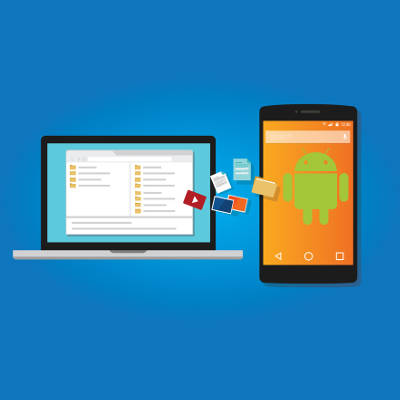
Due to the fact that an Android device allows you direct access to its file system, it can essentially serve the same purpose as your standard external hard drive. Just as you would plug an external hard drive into a computer to move data, you can most likely use the charging cable for your device to connect it to your workstation.

Once your smartphone is connected and unlocked, you should be able to find a notification informing you that the device is charging. Tapping the notification will bring up a menu of the USB connection capabilities, for which one option is “Transfer files.” With that enabled, open File Explorer on your workstation. Your Android device should be accessible through the File Explorer menu.

Accessing your device this way will allow you to browse through your files and copy them over to your PC.

Safely Leveraging BYOD
Of course, security should always be your first concern when implementing a new process. Even a process as small and simple as transferring files from a mobile device needs to be approached mindfully for the business’ safety. A Bring Your Own Device, or BYOD, strategy may be tempting to implement to help cut the costs of equipping your entire staff with company mobile devices. However, if you elect to enact BYOD practices, you need to be sure that you are properly prepared to deal with any risks associated with them. That’s where we come in.

NuTech Services can help you to establish a BYOD strategy that meets the needs of your business–without exposing it to undue risk. Call 810.230.9455 to get started.

virtual_telephone_400.jpg

3 Reasons VoIP Is An Improvement Over Traditional Telephony

virtual_telephone_400.jpg

Do you still rely on a traditional telephone system to keep in touch with clients and internal departments? This can be a severe issue for your operational budget. While your employees might be accustomed to having the physical phone on their desks, virtual phones are becoming a major contender to replace them for all different types of businesses.

Voice Over Internet Protocol, also known as VoIP, has a surprising amount of benefits over its traditional contemporary. Here are some of the best features of VoIP that make it a dynamic and flexible choice for your organization.

Flexibility
Have you ever had to step away from your desk while you’re on the phone? With the static lines tied to the corded phones of old, this was an impossibility. Even if it is a cordless phone, chances are that it’s limited to a certain range, even within your office. VoIP can completely change the way you look at a telephone solution.

VoIP has options that lets your employees take their duties on the road, allowing them to communicate with any connected device. You can use VoIP applications on a laptop, smartphone, or even a desktop. All you need is the right software installed. Your employees can take their conversations on the road, be it for a business trip, a walk down the street, or burning the midnight oil at the home office to meet an important deadline.

Functionality
Knowing what your phone system can do is incredibly important. Sometimes your phone system will come with various other services like your Internet or television packaged together. When this happens, service providers tend to nickel-and-dime you for everything they can get for simple conferencing solutions. Depending on what your services come attached to, you may need additional features that aren’t already included.

VoIP allows your organization to spend fewer resources on services that you may not want or need, and free up more funds to spend on what you absolutely need. For example, you can get all of the services that you want and need with VoIP, including call forwarding and conference calling, but without going all-in on a service that forces you to pay for television or other services. This helps your business be more productive and lucrative without dropping more than necessary on unused services.

Cost
Your traditional telephone system will wind up costing you more in the long run thanks to its plethora of services and features that don’t do anything for your bottom line. Since these companies require various services to be purchased in a bundle, they cause more trouble than they are worth–particularly in regard to long-distance charges. It might seem like you’re getting a great, varied service, but you’re just spending money on things that you don’t need.

Unlike traditional telephone systems, VoIP lets your organization benefit from significant cost savings. Since you’re only using your business’ Internet connection, you’ll spend less on implementation fees and running wires around your office. All you need to think about is your bandwidth, but that’s easy enough to figure out compared to all of the headaches that come from a traditional telephone service. We can help you work out a plan where you get all of the services that you want, all budgeted into a monthly payment that works for your specific needs.

Does your business need a new communications solution? NuTech Services can help. Your organization can take full advantage of VoIP to augment communications and change the way you do business. To learn more, reach out to us at 810.230.9455.

cloud_sync_backup_400.jpg

The Differences Between Sync, Backup, and Storage

cloud_sync_backup_400.jpg

The cloud is a great solution for your business’s file management needs, but depending on your specific situation, you’ll find that the same cloud won’t work for every single business model. We’ll walk you through some similar-sounding terms related to the cloud that might sound like they are the same thing, even when they’re not.

Cloud Sync
Cloud sync is a way to access files and documents across multiple users and devices through a cloud-based folder on the device. You know how you open a folder on your laptop or desktop? It’s just like that. You place any files that you want to share across devices into this folder and they will be uploaded to the cloud and shared between them. Just keep in mind that any mistakes you make with the file will also carry over, which can be problematic, as they are all updated in real time.

Cloud Backup
Using the cloud to back your data up is a great way to change the way you protect your business’s future. You can automatically save your data to a secondary location, updating it whenever a file has been changed beyond the original. However, unlike tape backup, cloud backup doesn’t need any of your internal staff changing over tapes or initiating the backup themselves. Your data is then stored off-site automatically. You can retrieve your data as long as you have appropriate bandwidth. In fact, regardless of your bandwidth, it will likely be faster than your traditional tape backup solution. If you need your data for any reason, it can be encrypted and stored on a hard drive to be shipped overnight to your location as well. Remember, a great cloud backup solution will allow you to revert to a previous version of your data in the event that you suffer from a data loss incident.

Cloud Storage
Cloud storage is, more or less, exactly as it’s described. You store your data in the cloud. Cloud syncing forms the backbone of cloud storage. These services are quite reliable so that you almost always have access to your data. Depending on what kind of data it is, you could host it almost exclusively in the cloud. This type of hosting is somewhat situational, though, so we recommend that you consult with us before going ahead with such an initiative.

Forming Your Cloud Strategy
Ultimately, you want to have no fewer than two working copies of your data readily available in the event of a disaster. All of your important files and data should be kept off of your workstations and stored on a centralized network infrastructure, which is regularly backed-up directly to the cloud for restoration at a later date. This way, you’ll be able to minimize downtime and data loss. Above all else, keep your data backups off of your business’s internal infrastructure. If you somehow lose access to your data or your infrastructure due to a hacking attack or natural disaster, you’ll be glad that you backed up to a secure off-site location.

For assistance with forming a cloud backup solution, reach out to NuTech Services at 810.230.9455.